Where to add a user
Platform users are added separately for each account level. Your tenant’s own staff, each partner’s staff, and each client’s staff each have their own Users area, all using the same Add User form:
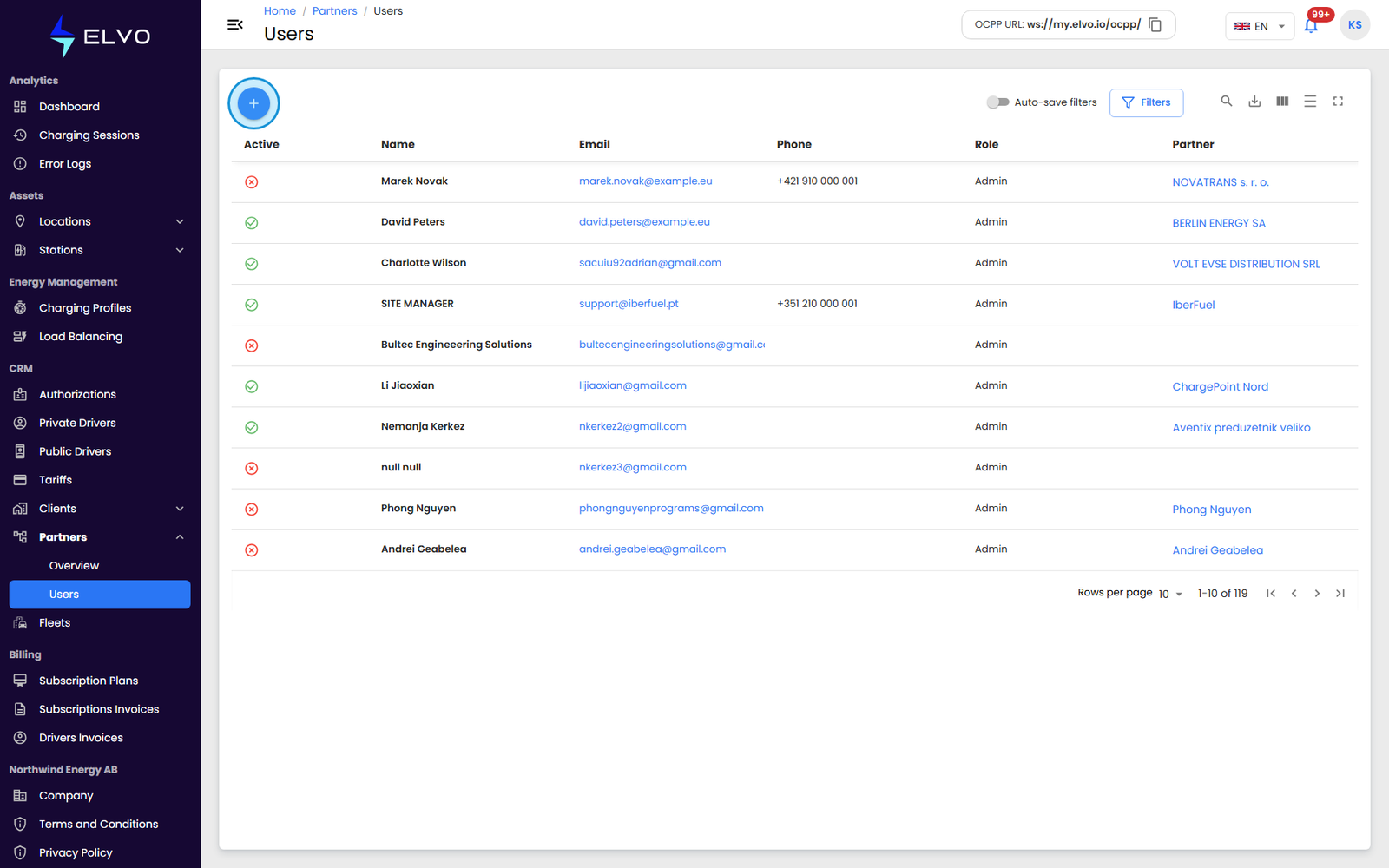
- Partners — in the sidebar, open CRM and select Partners, then switch to the Users menu.
- Clients — in the sidebar, open CRM and select Clients, then switch to the Users menu.
- Company — open Company in the sidebar and select the Users tab.
From any of these Users lists, click the + button to open the Add User form.
Filling in the form
The Add User form is the same in all three areas:
- Email — required, and must not already be registered on the platform.
- First name and Last name — required.
- Phone — optional.
- Role — required; the list of assignable roles is filtered to your own permission level (see section 17.2 for the role hierarchy).
- {tier: enterprise} A Partner selector also appears here (a Client selector when adding from the Clients area), letting you choose which account the new user belongs to.
Fill in the fields and click Save.
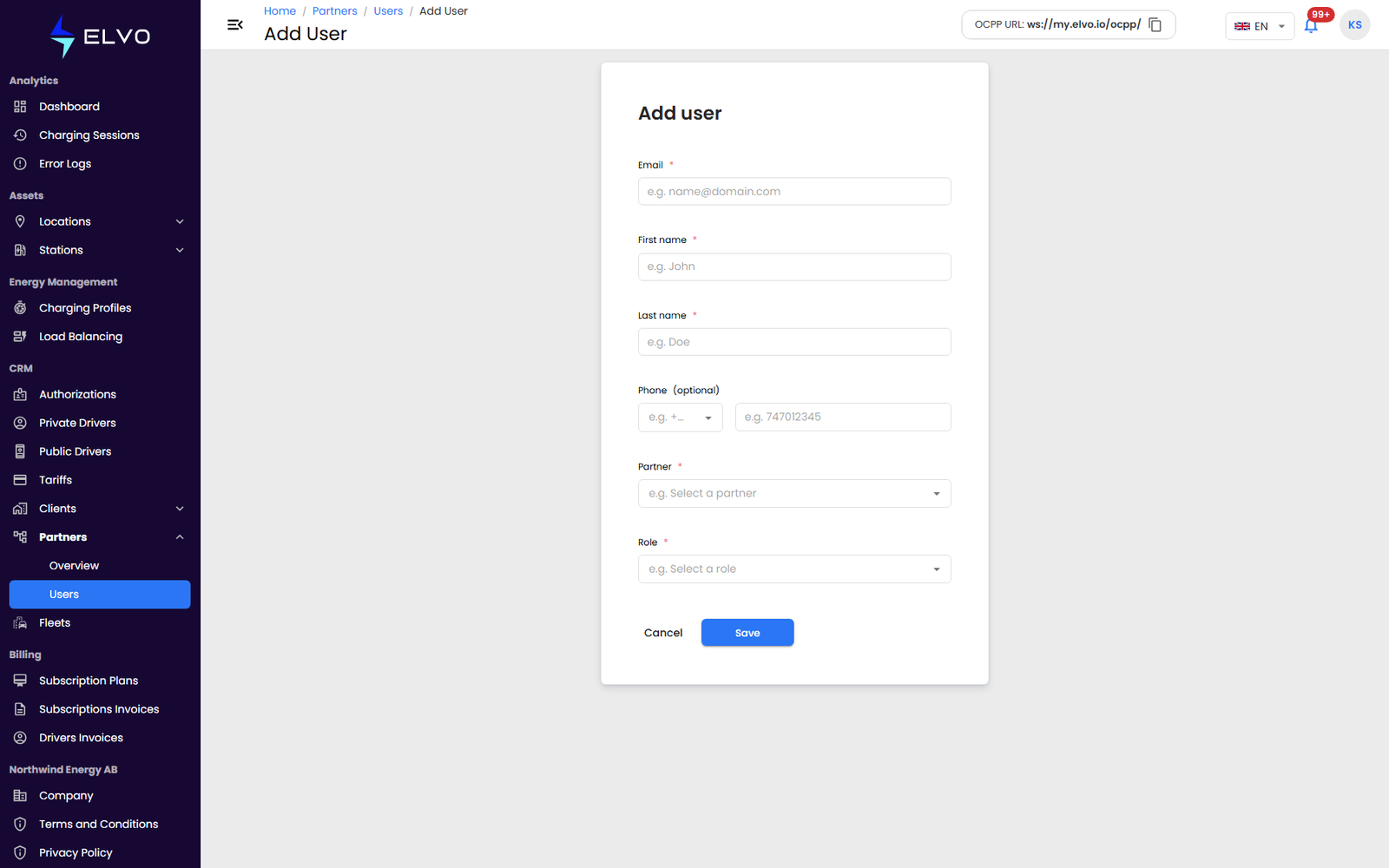
If the email is already in use, the platform shows an error instead of submitting. An invalid email format is flagged inline before you can submit, and the form blocks submission until every required field is filled in.
After you submit
Saving shows a confirmation and returns you to the Users list, with the new user’s row highlighted. The new user then receives a confirmation email to activate their account.
Editing or removing an existing user is covered in section 17.3 (Edit a user) and section 17.4 (Delete a user).