What an RFID card represents
An RFID card (listed under Authorizations in the sidebar) is a physical token a driver taps at a station to start a charging session. Each card belongs to a client, carries a unique RFID code and a unique Contract ID, and can be activated or deactivated without deleting its record.
The Authorizations list
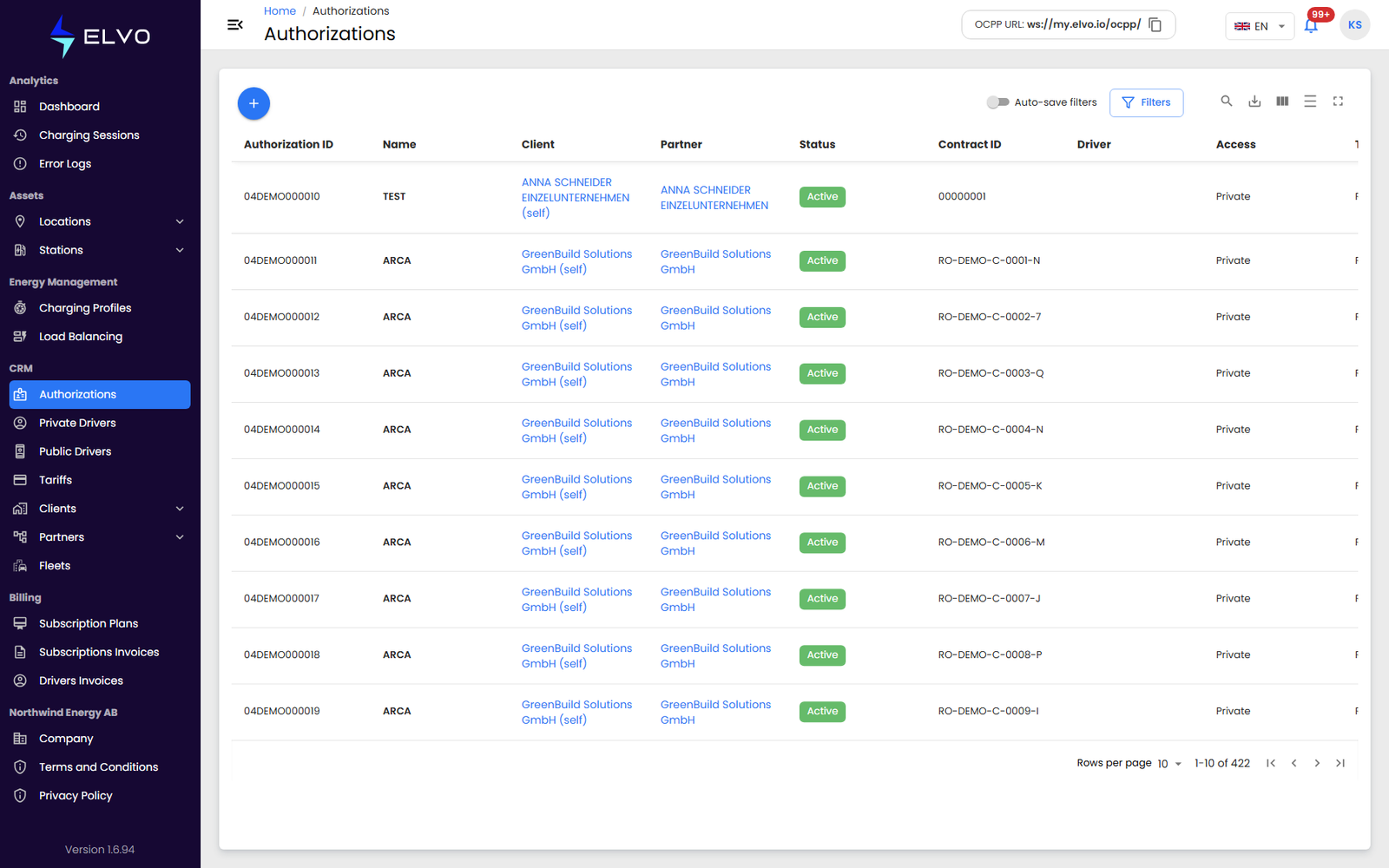
In the sidebar, open CRM and select Authorizations to see every RFID card registered for your tier. Use the + button in the top-left to add a new card.
Adding a single card
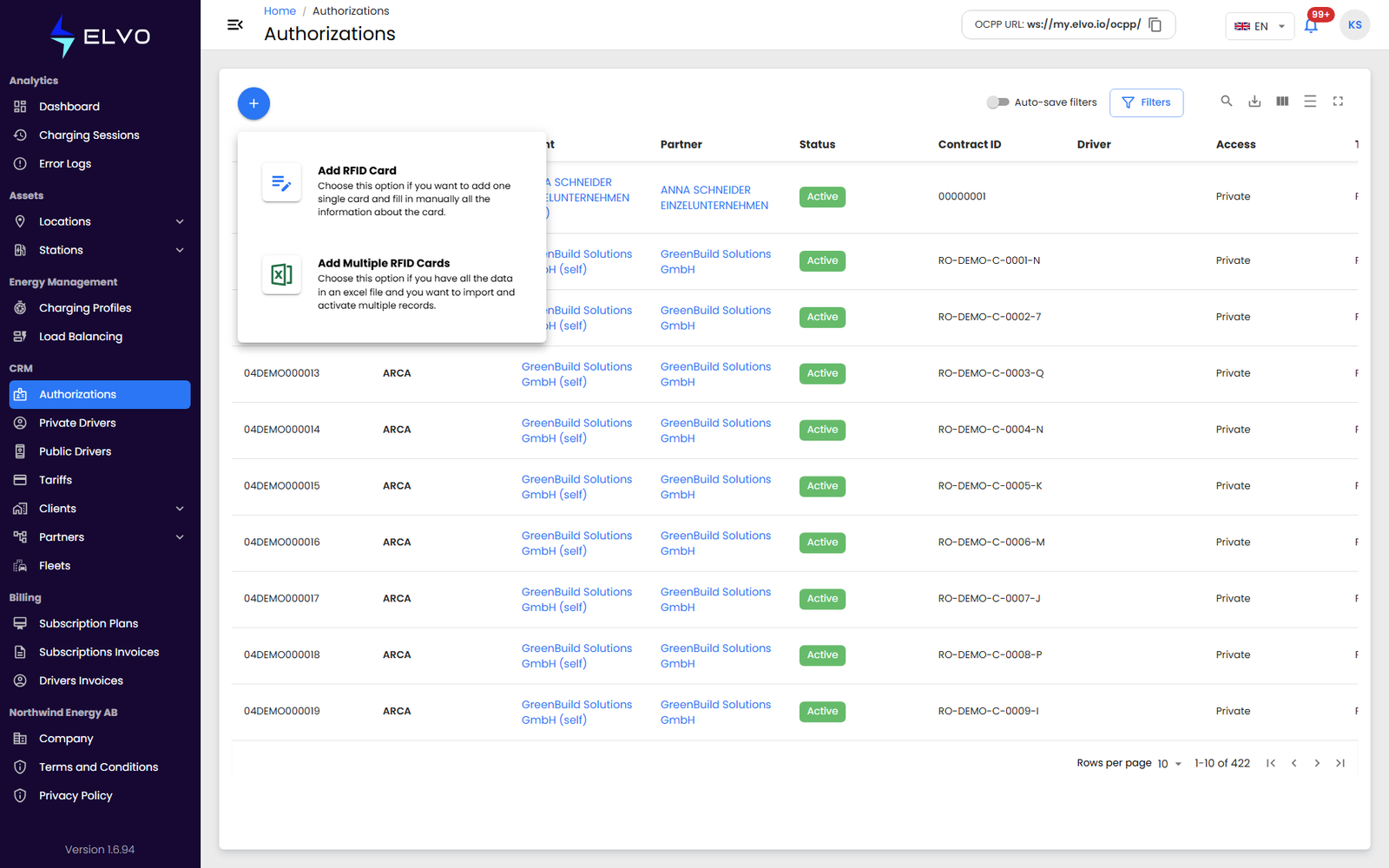
- Click + and choose Add RFID Card (its sibling option, Add Multiple RFID Cards, imports and activates several cards from an Excel file).
- Enter the card’s Name (for example, “Employee card 1”), its RFID code, and its Contract ID. These three fields are required.
- If your account manages more than one client, select the Client the card belongs to.
- Optionally set Valid From and Valid To dates, and assign the card to a Group.
- Click Create.
The card is created and activated in one step, and the Authorizations list opens with the new card highlighted.
The platform rejects the submission if the RFID code or Contract ID is already in use by another card, or if Valid To is earlier than Valid From. Missing required fields are flagged inline before you can submit.
Card details
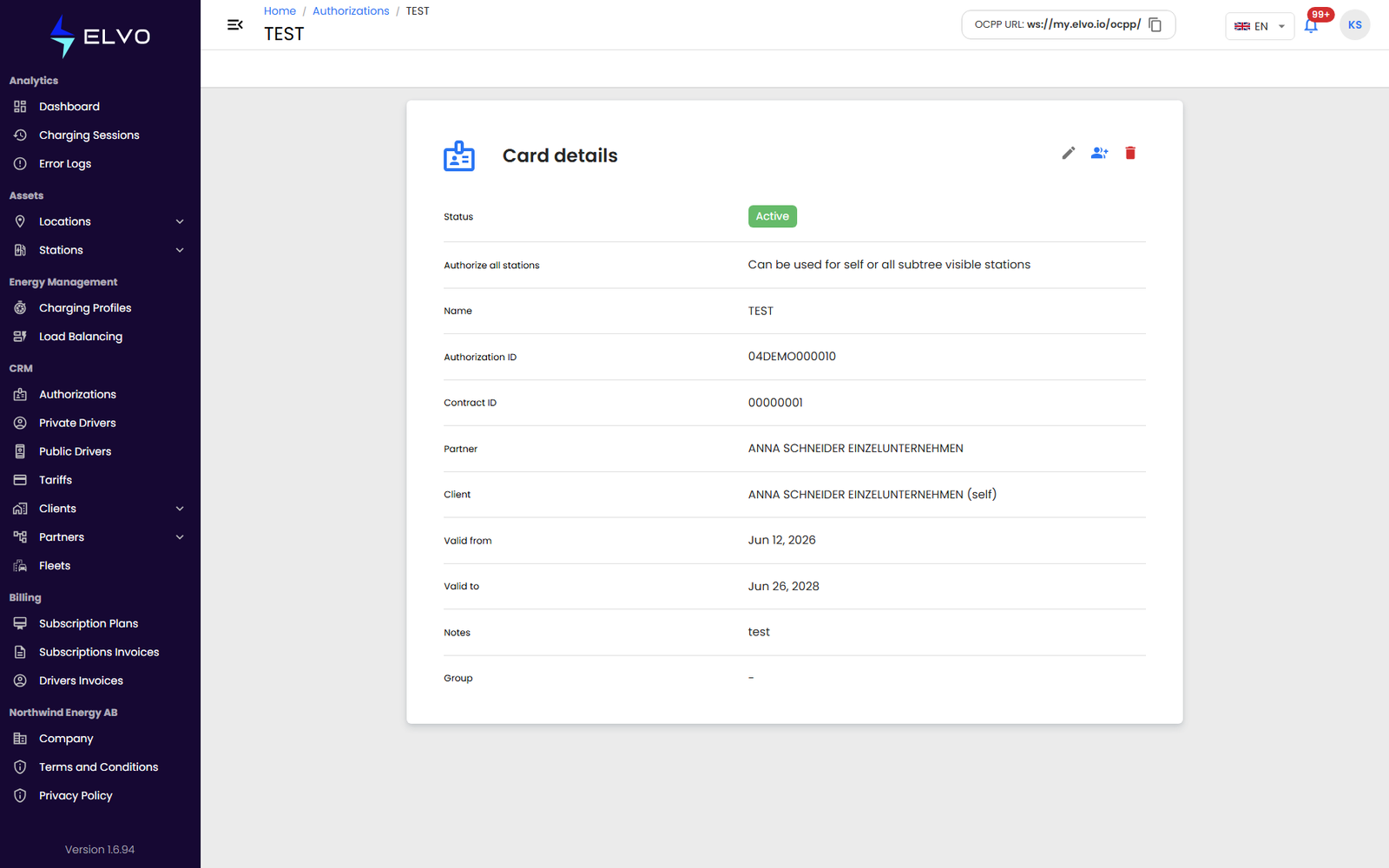
Open a card from the list to reach its Details tab (the card’s stored information) and its Charging Sessions tab (that card’s charging history).
Activating and deactivating a card
From the card’s details page, use the status toggle to activate or deactivate it. A deactivated card keeps its record but can no longer start a new charging session. If the update fails, the platform shows an error.
Deleting a card
Click the delete icon on a card row, then confirm in the “Are you sure?” dialog.
If the card already has charging sessions on record, the platform blocks the deletion and asks you to deactivate the card instead.