Starting an update
In the station’s Settings tab, the Firmware section has an actions menu, top right. Choose the update option to open the firmware update form, which asks for:
- The firmware location URL — where the update file is hosted
- A signing certificate
- A signature
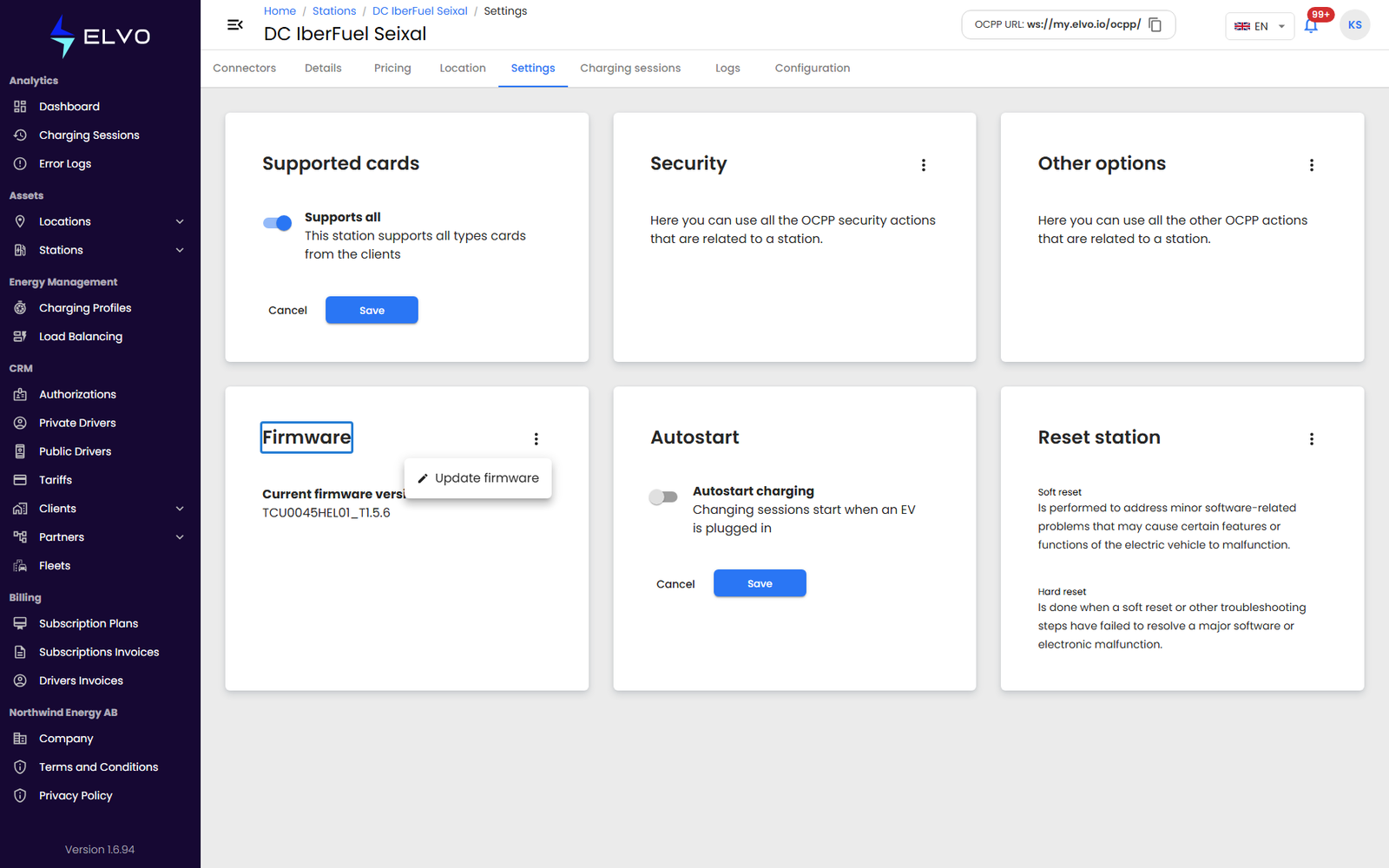
Confirm to send the update. The platform forwards it to the station as a signed OCPP firmware command, so the station must be online to receive it.
If it fails
The platform does not provide a way to roll back a firmware update from the UI once it has been sent.