Opening a location’s details
Open a location from the Overview list to reach its Details tab. The tab opens in read-only view; click Edit to make the fields editable, update what you need, and save your changes. Editing uses the same fields as creating a location, including the map for repositioning the pin (see section 7.2).
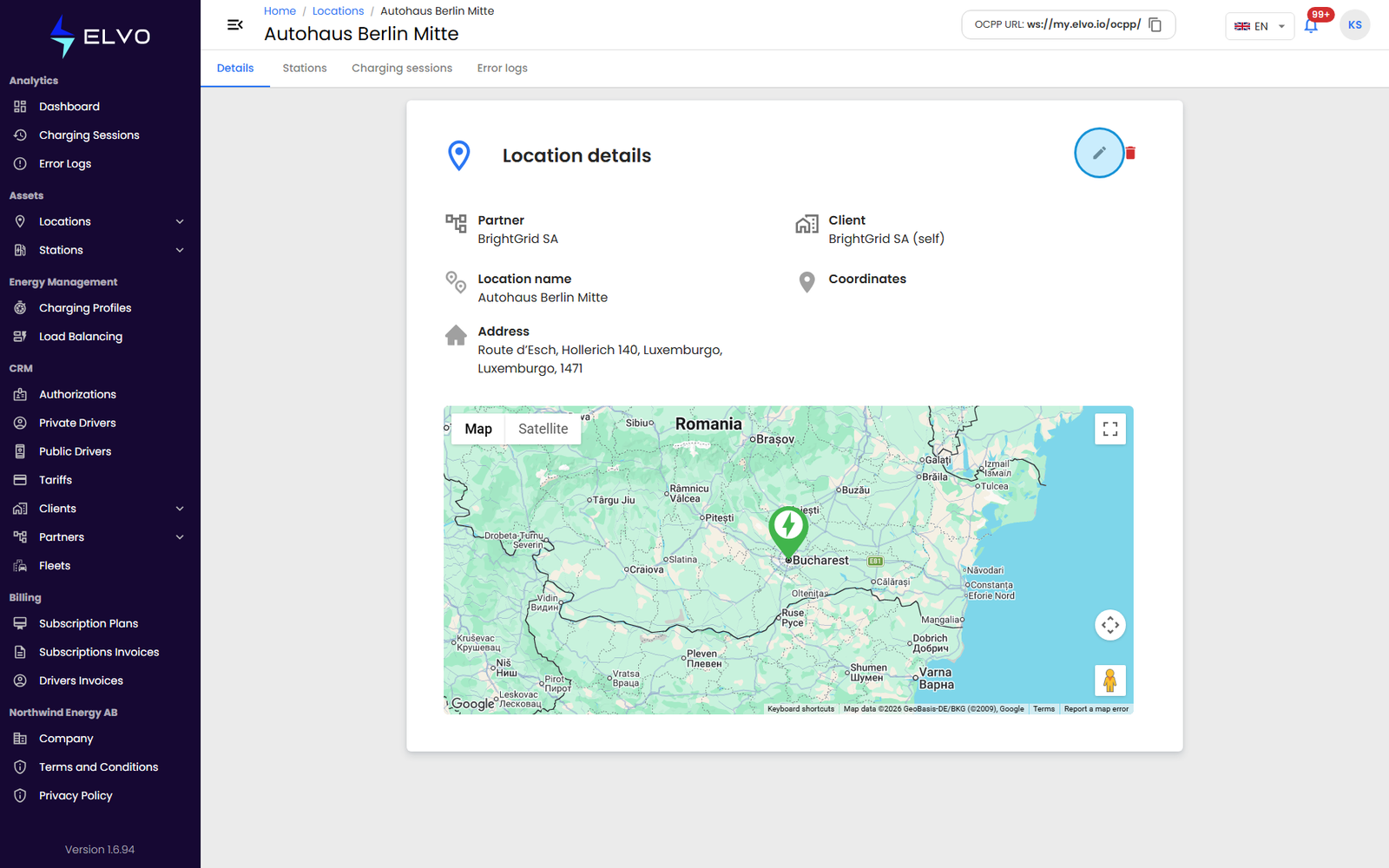
The location detail tabs
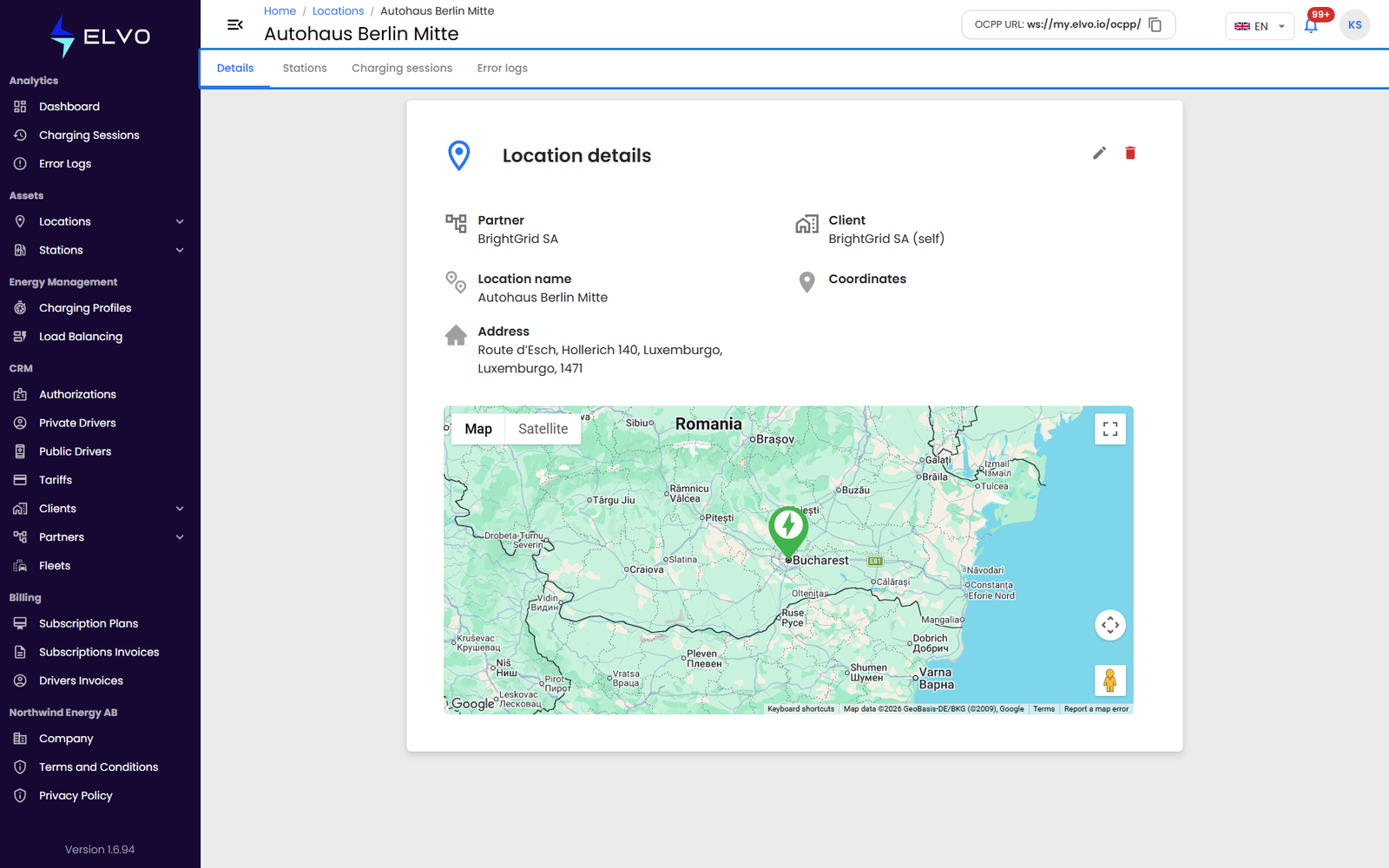
Each location’s detail page has four tabs:
- Details — the location’s name, address, and coordinates (the same fields set when it was created).
- Stations — the charging stations installed at this location (see Parts 4 and 5).
- Charging Sessions — the session history for stations at this location (see Part 2).
- Error Logs — the error log entries for stations at this location (see Part 3).
Deleting a location
From the Overview list, click the delete icon on a location’s row. A confirmation dialog shows the location’s name — confirm to permanently remove it. If the location still has stations assigned to it, the platform may block the deletion.