Deleting a widget
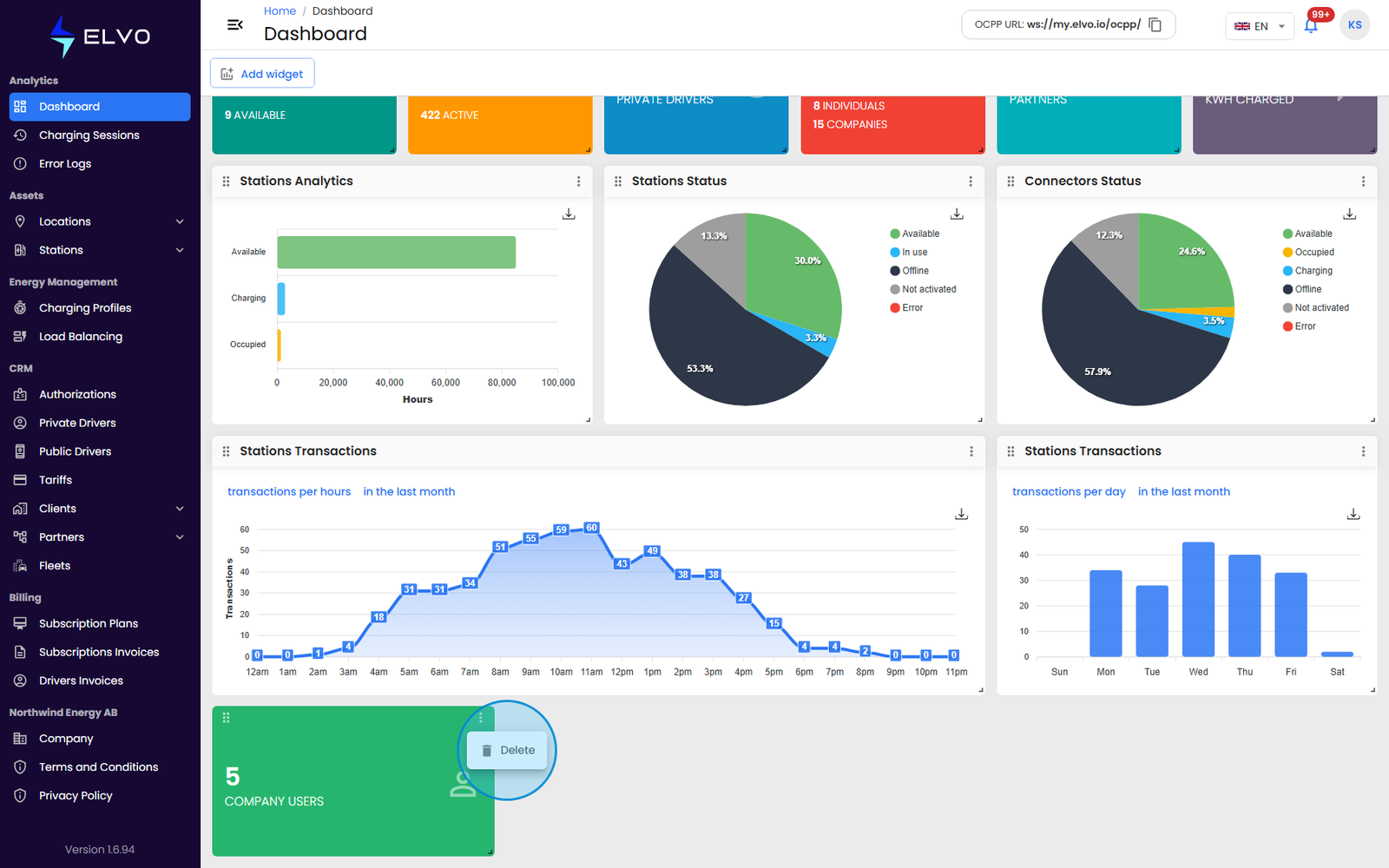
Remove a widget when you no longer need the information it shows, or when you want to replace it with a different type. Click the More Options icon (three dots) in a widget’s top-right corner, then select Delete. On report widgets this is the same menu used to maximize, duplicate, rename, and configure the widget (see section 1.3); on count widgets, Delete is the only item.
The widget is removed immediately — there is no confirmation prompt, so click Delete only when you are sure.
There is no separate save step — dashboard layout changes, including widget removal, save automatically. Deletion only changes your personal Dashboard layout: it does not delete any underlying data (stations, cards, sessions, and so on), and it does not affect other users’ dashboards.
If you delete a widget by mistake, add it again from the widget catalog (see section 1.2). You configure it fresh, since the previous widget’s filters and display settings are not restored.