Exporting to Excel
Click the export icon in the top-right corner of the table toolbar (its tooltip reads Export excel) to download the current results as a spreadsheet.
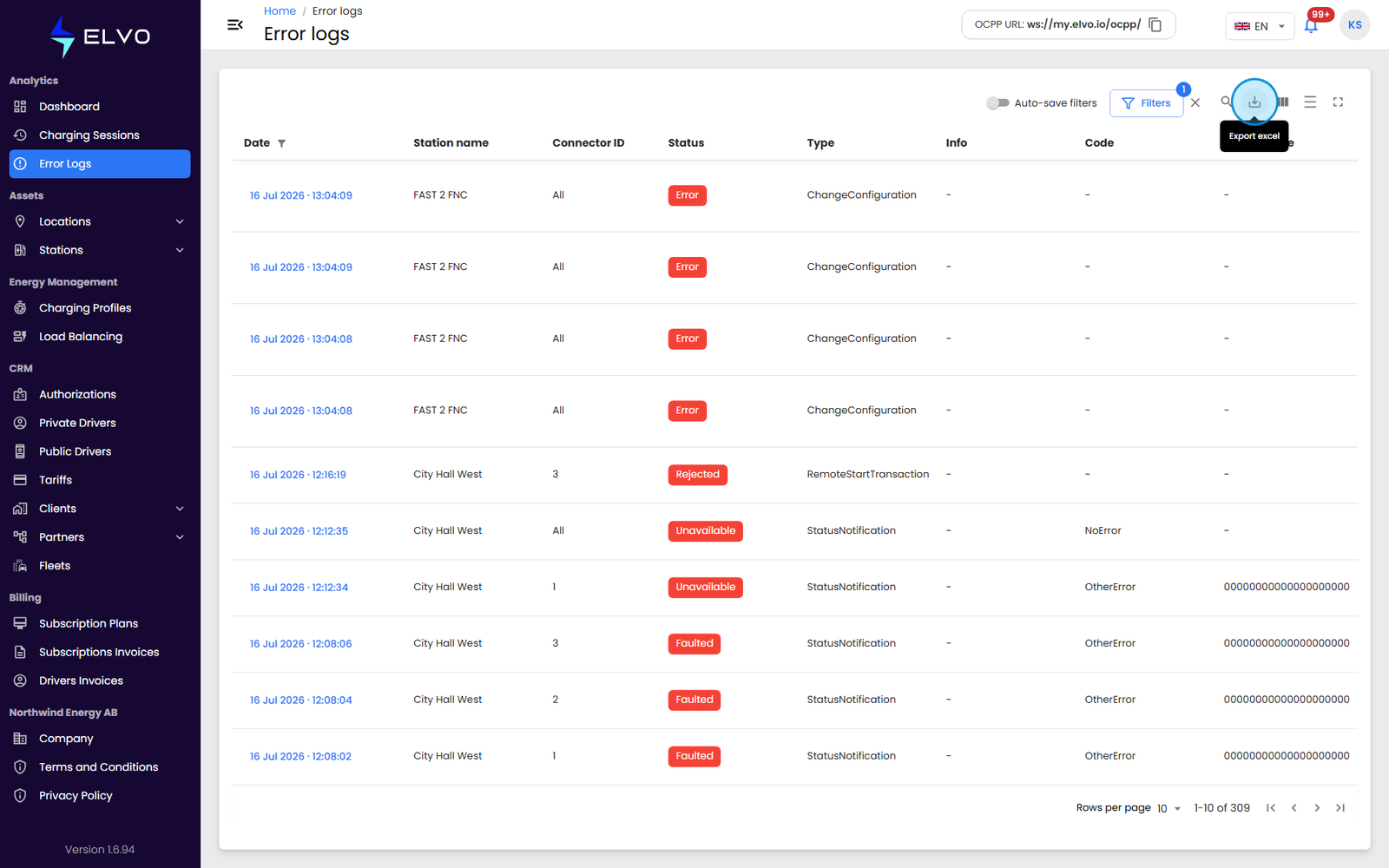
The export mirrors what is currently on screen, not the entire error log: if a date range, station, connector, or error type filter is active, only the matching rows are included. To export everything, reset the filters first (see section 3.2), then export. Use this to keep an offline record of error activity or to share it with someone who does not have access to the platform.
What the export contains
Columns in the file follow the same order and visibility as the table on
screen. The downloaded file uses the platform’s standard export formatting:
bold, colored column headers and dates shown as dd MMM yyyy, hh:mm AM/PM.
The file name includes the entity type and the export date.
The export control is disabled whenever the table has no rows to export. Very large result sets can take a few moments to generate; if the download does not start, try the export again.