What a consumption report is
The platform does not have a separate report-building screen. A consumption report is the Charging Sessions table filtered down to the sessions you want to summarize, then exported to Excel — the same export described in section 2.2.
Setting up the filters
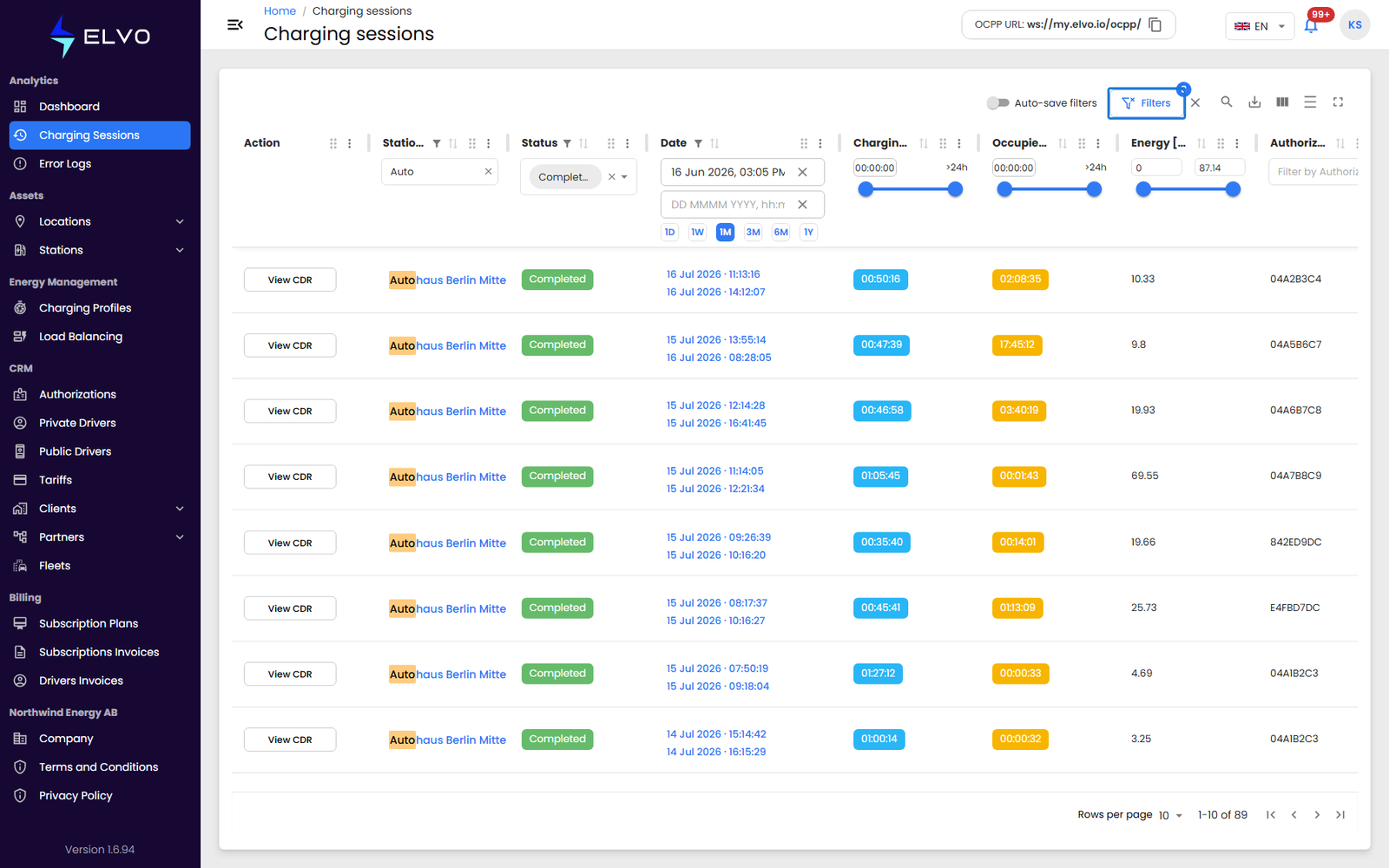
- From the sidebar, open Analytics and select Charging Sessions (see section 2.1), then click Filters (see section 2.2).
- In the Status filter, check Completed so the report only includes sessions that finished normally.
- In the Station name filter, type the name of the station you want in the report.
- In the Date filter, set the date range you want the report to cover — or pick a quick range such as 1M for the last month.
The filters apply as you set them — the table narrows immediately.
Reviewing and exporting
Check the filtered table to confirm it shows the sessions you expect. When you are ready, click the export icon in the top right (tooltip Export excel) to download the report.
What the export contains
The downloaded file lists one row per session, with the columns visible in the on-screen table (see section 2.3).