Connector cards
The Connectors tab shows one card per connector, labeled
Connector {index}. When the connector has an OCPI ID, a small caption
under the title shows it — for example, OCPI ID: RO*ELV*E0001*1. The
caption is hidden if the connector has no OCPI ID. Status refreshes
automatically every 5 seconds.
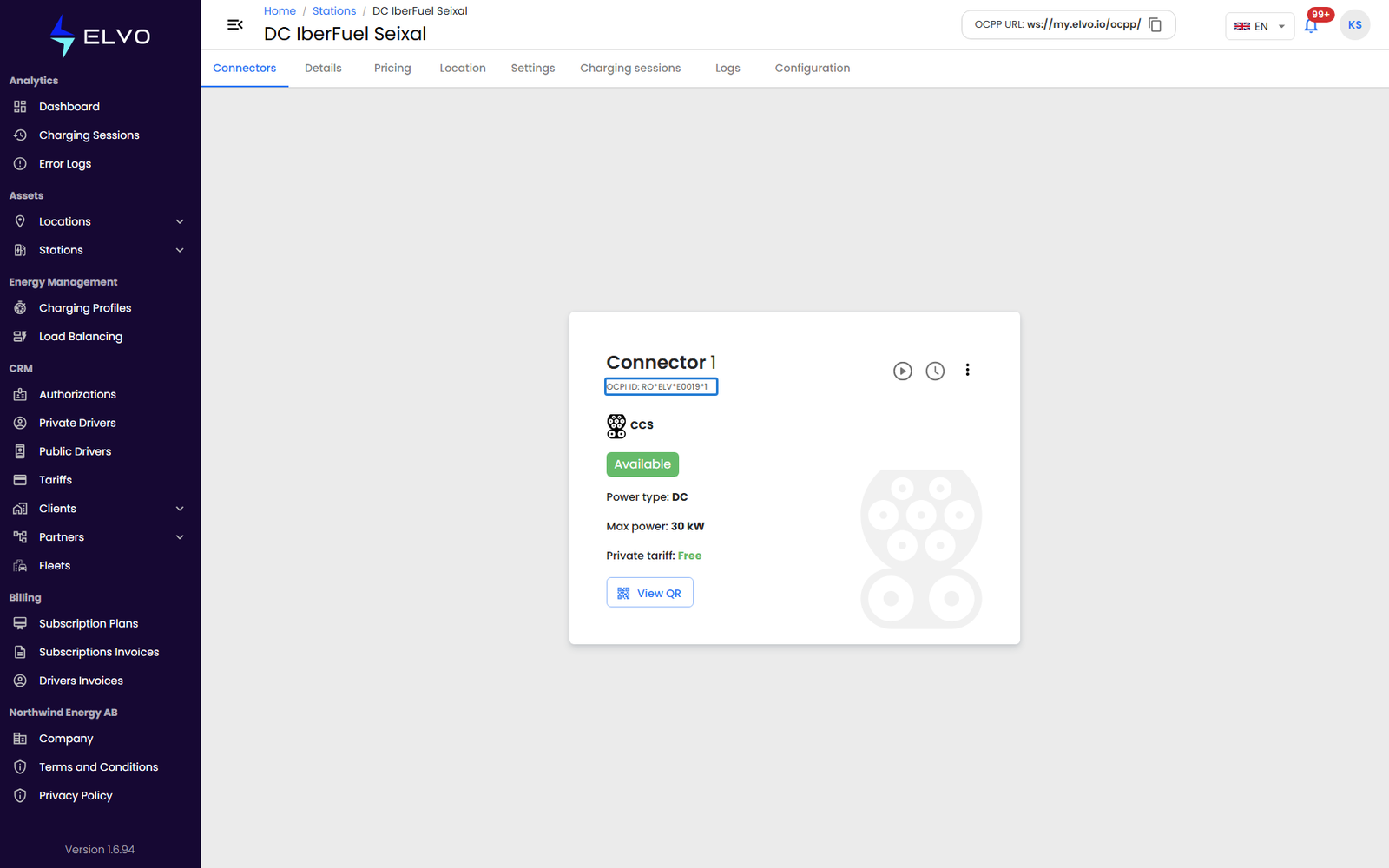
What the card shows depends on status:
- Available — connector type, maximum power, tariff info
- Charging (and the related Suspended/Finishing states) — energy consumed (kWh), current power (kW), charging time, state of charge, cost so far, and estimated time to finish
- Reserved — reservation details
- Faulted / Unavailable — the error code reported by the station
Actions
Header buttons change with status: Start charging (Available), Stop charging (while charging), Reserve (Available), Cancel reservation (Reserved), and View QR, always available. Starting a session asks you to pick an RFID card or enter a public driver’s email; reserving asks for a card and a duration.
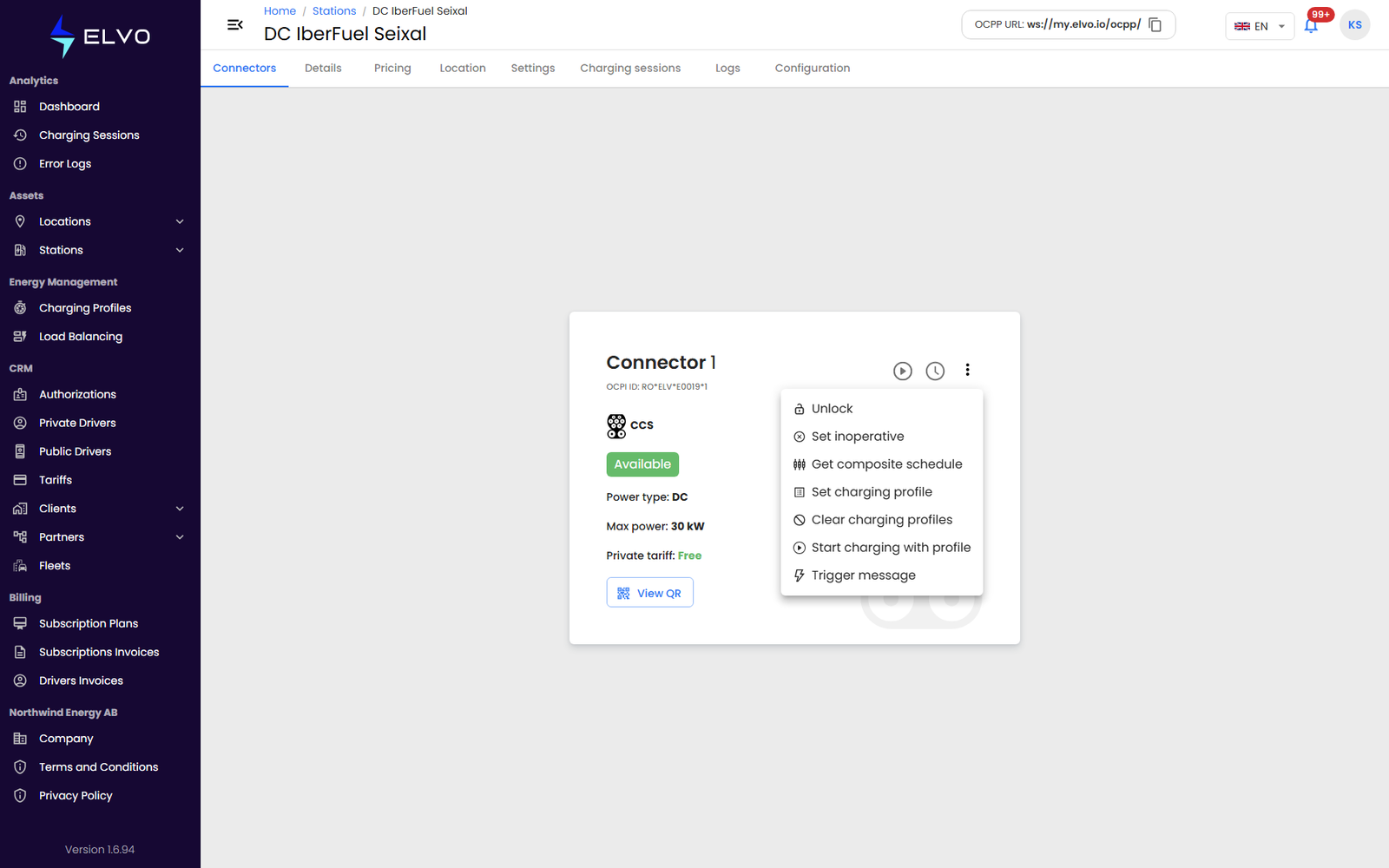
A three-dot menu adds OCPP-level actions: lock/unlock the connector, set it operative or inoperative, get the composite schedule, set or clear its charging profile (see Part 9), start charging with a profile, and trigger a message.
If the station is offline, the connector is busy, or it does not respond in time, the action fails with an error message. You can retry immediately — the 5-second status refresh picks up the result automatically.