What a load balancing group is
A load balancing group ties a set of stations to a shared current limit, so the platform can share the available power between them instead of letting each station draw its maximum independently. This prevents electrical overloads and keeps charging available to every vehicle connected to a station in the group. The platform periodically re-evaluates each group and adjusts the current allowed per station based on the group’s overall limit and how many sessions are active at that moment.
A station can belong to only one load balancing group at a time, and changes you make to a group take effect immediately.
Viewing existing groups
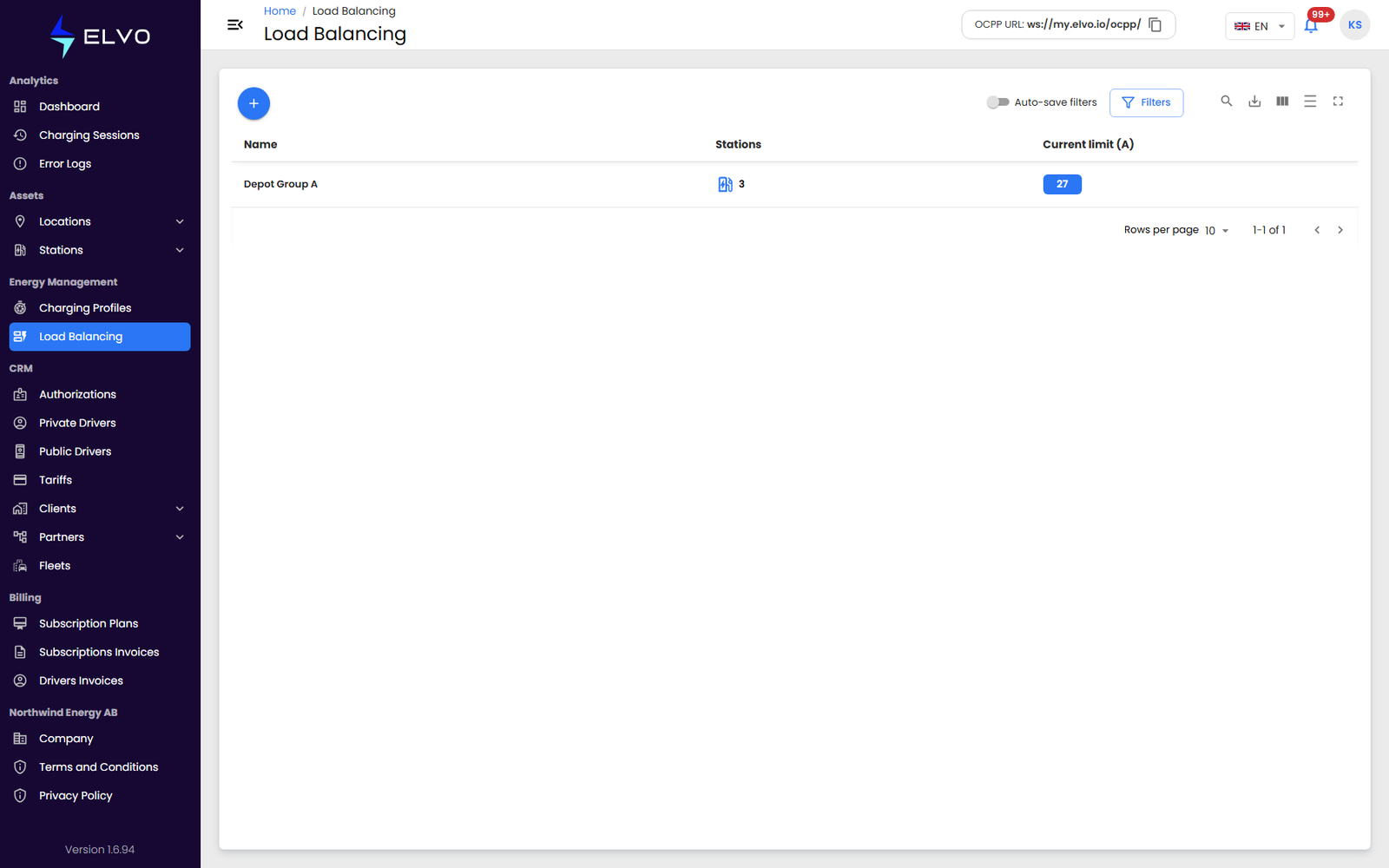
In the sidebar, open Energy Management and select Load Balancing
to reach /load-balancing. The list shows every group configured for
your tenant, with its Name, the number of Stations it contains,
and its Current limit (A).
Creating a group
Click + above the list to open the create form.
- Enter a Name for the group.
- Pick one or more locations in Select location(s). The stations at each selected location appear on the right, with their ID and model.
- Use the toggles to choose which stations join the group.
- Set the group’s Energy limit, in amperes. The limit applies across all stations selected in the group.
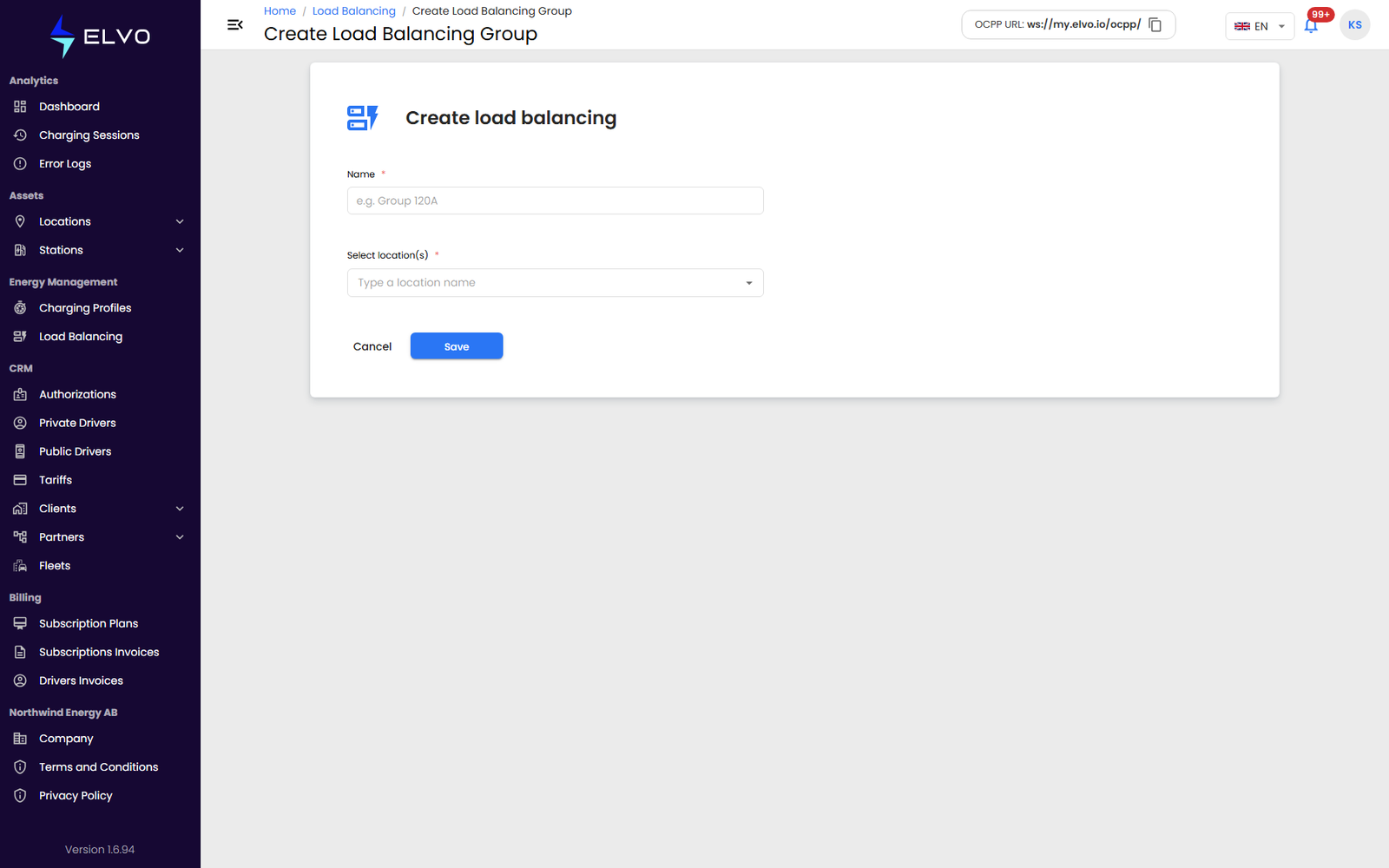
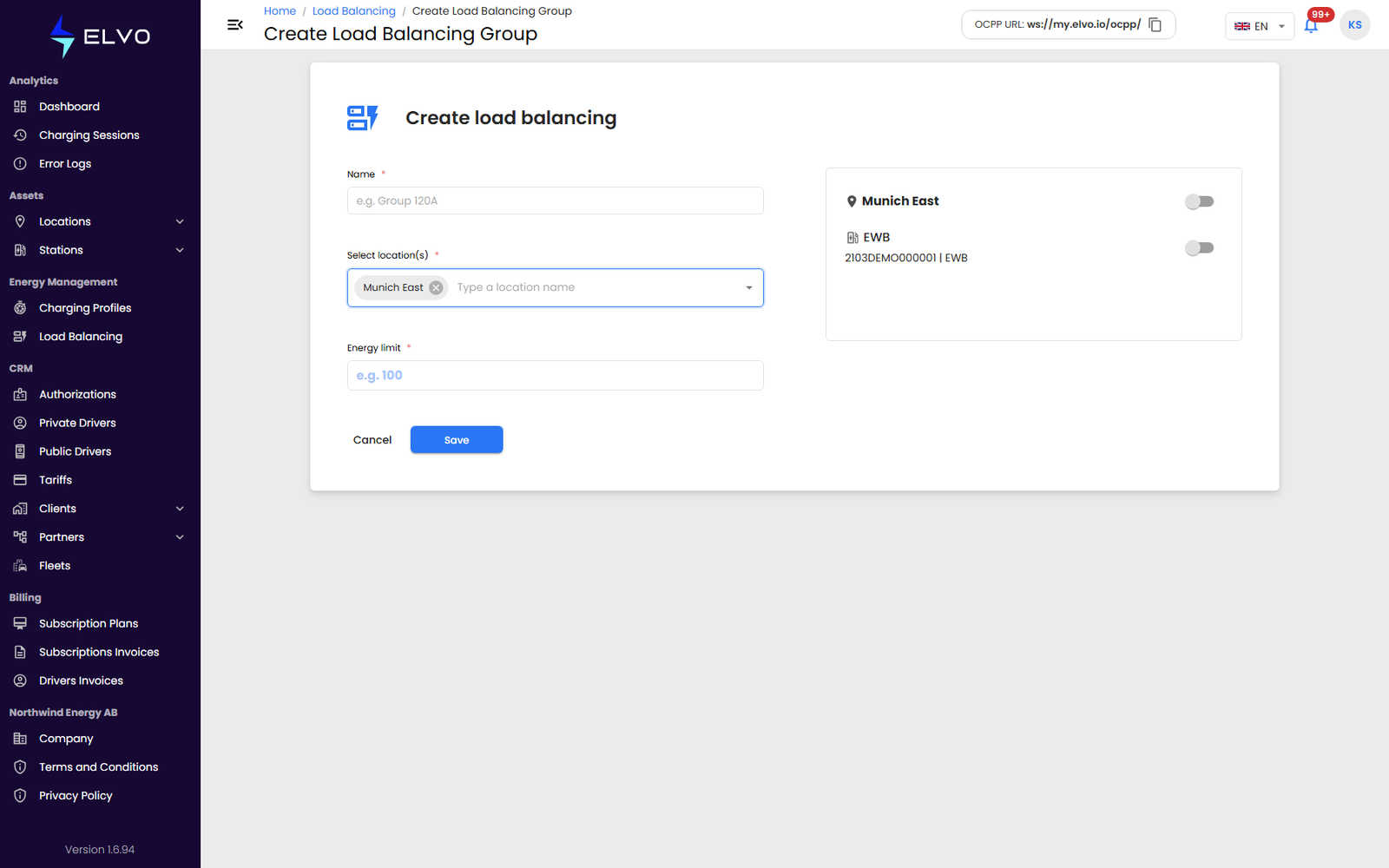
Click Save to create the group and return to the list. The form requires at least one selected station and a valid current limit before it can be submitted; if the platform rejects the submission for another reason, an error message appears and the group is not saved.
Group details
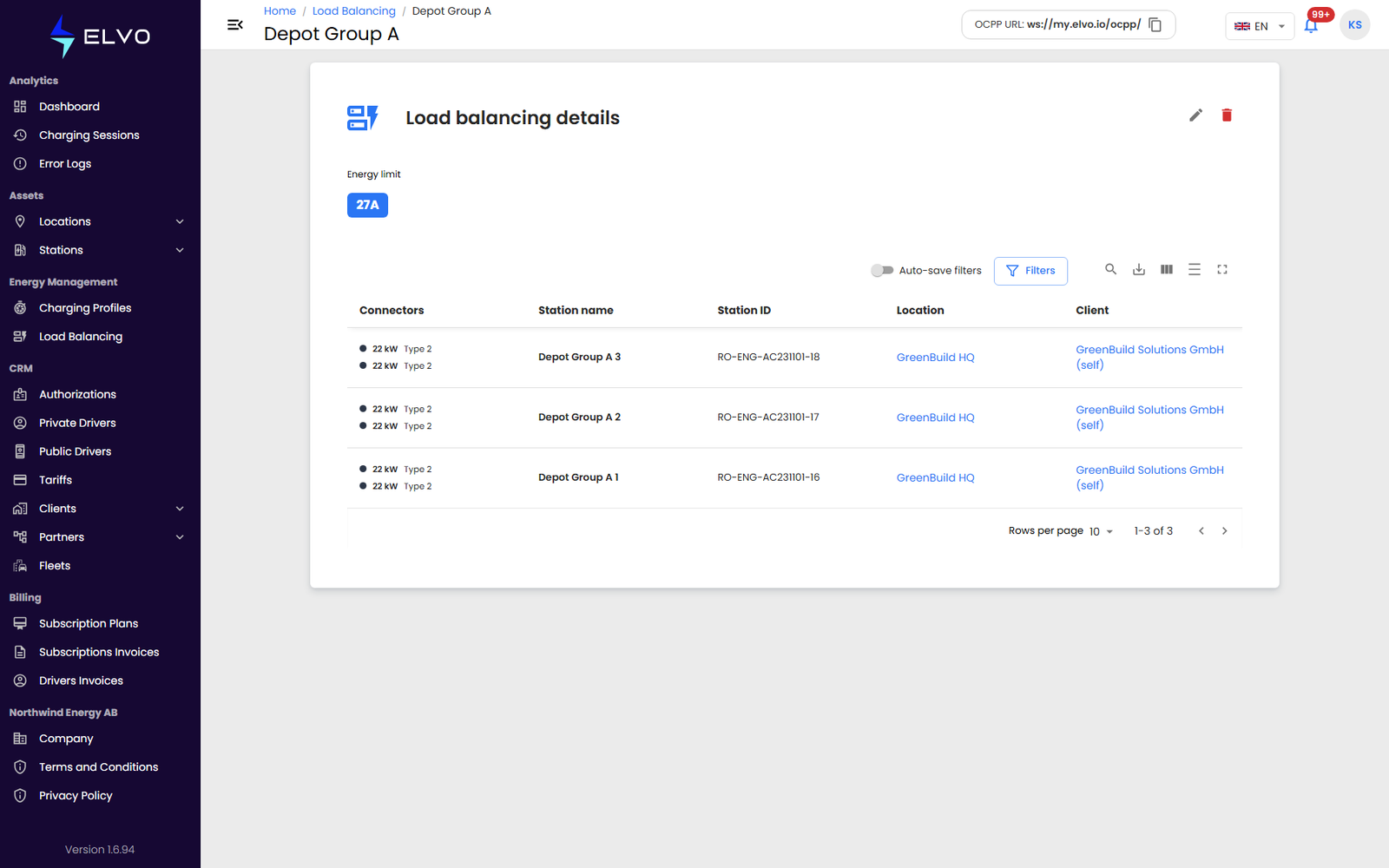
Click a group in the list to open its details page.
Editing a group
Click Edit in the top-right corner of the details page to open the same form used to create the group, pre-filled with its current name, stations, and current limit. Add or remove stations, adjust the limit, or update the name, then click Save.
Deleting a group
Click Delete in the top-right corner of the details page to permanently remove the group — treat the action as immediate, and only use it when you are sure.