Opening the location form
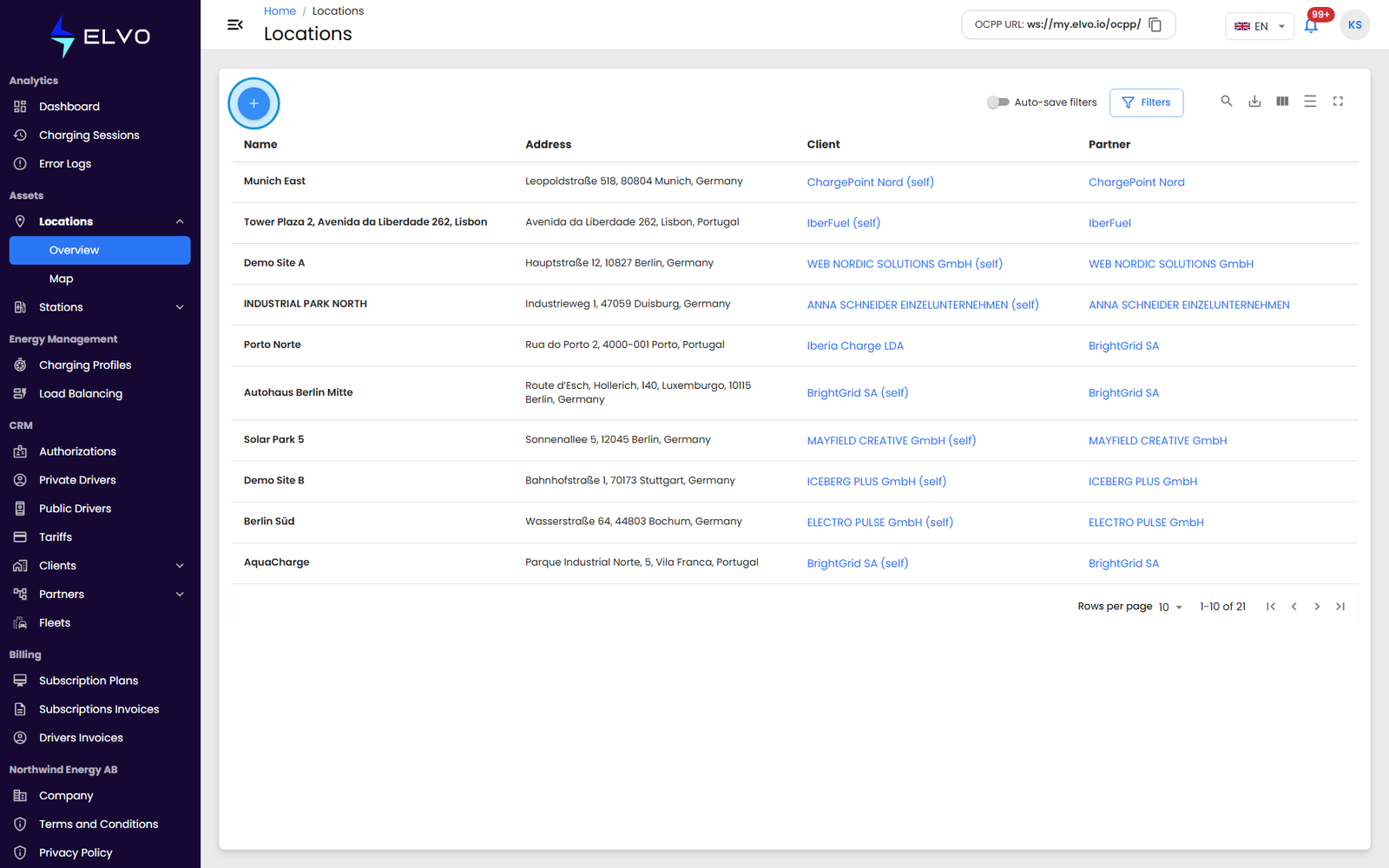
Adding a location is the first step before you can register any stations there. In the sidebar, open Assets, then Locations, and select Overview. Click the + button above the list to open the location creation form.
Filling in the location details
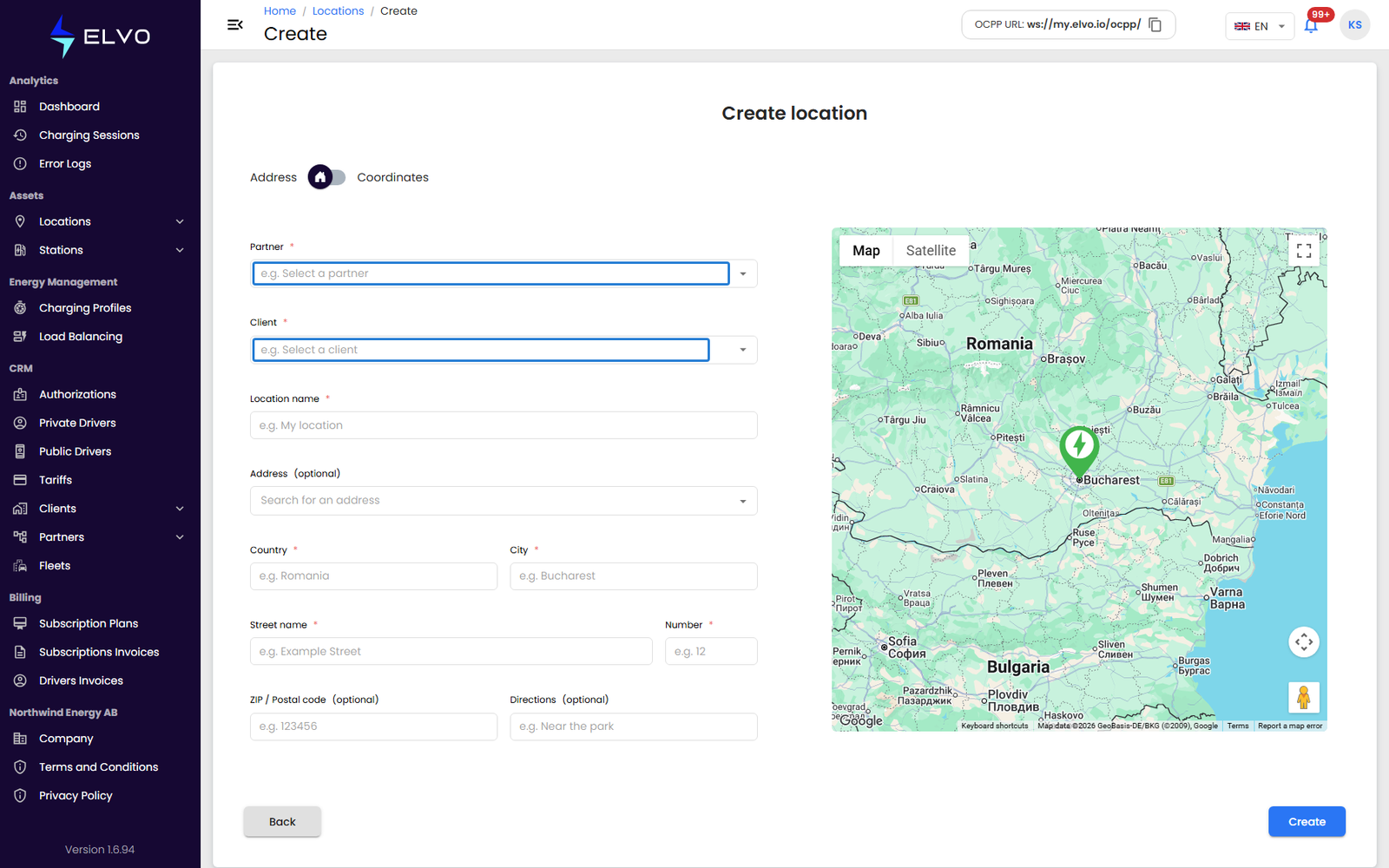
Enter the location’s Name, then its address: Country, City, Street, and Number. Postal Code is optional, and you can add free-text Directions for anything the address alone does not make clear.
- {tier: enterprise} Select the Partner and the Client the location belongs to from the dropdowns.
- {tier: partner} Select the Client the location belongs to from the dropdown.
Setting the exact position
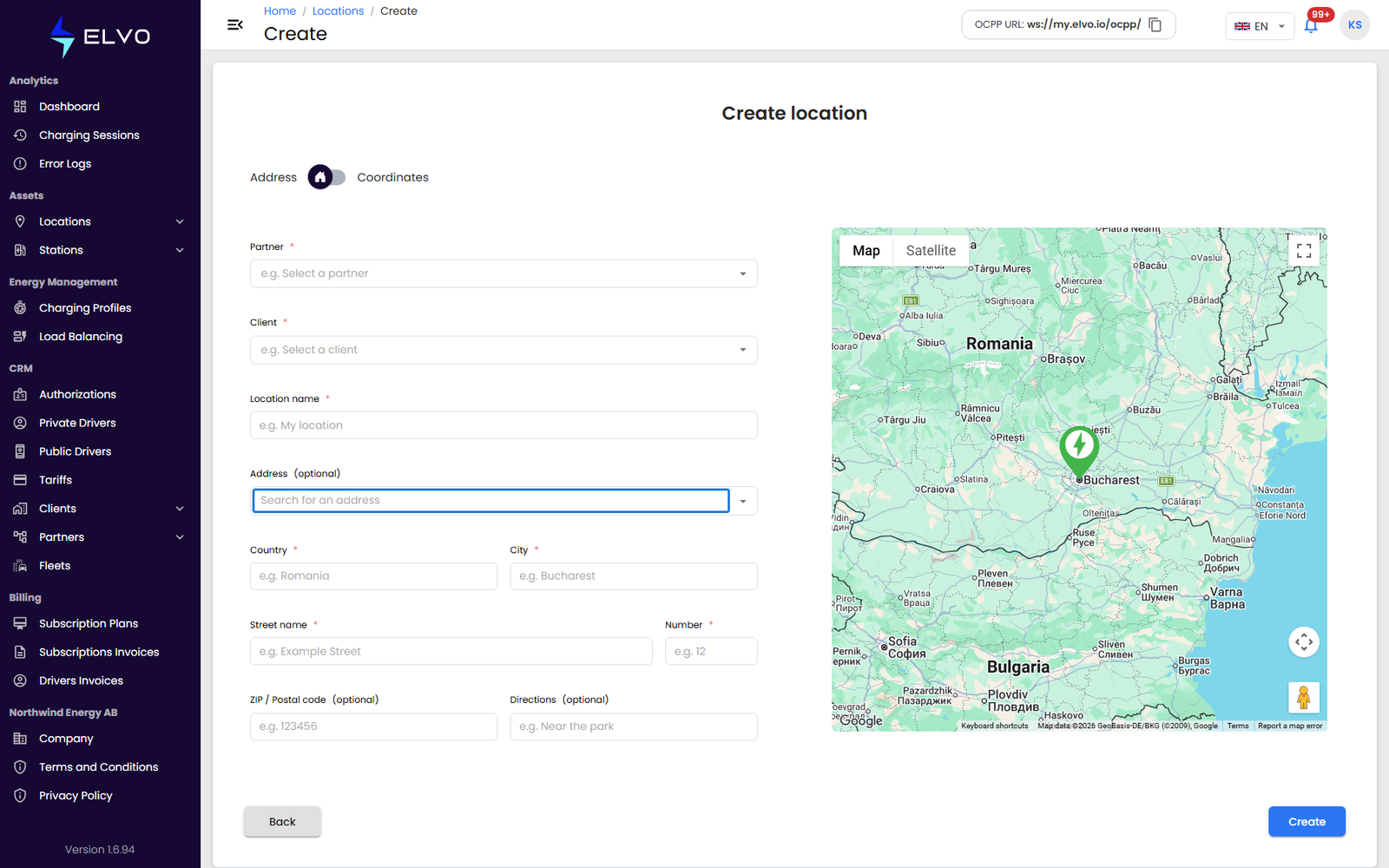
The form includes a map for placing the location precisely. Type the address into the search field and select a suggestion to jump the map to it, drag the pin to adjust it by hand, or enter the exact Latitude and Longitude yourself.
Saving the location
Review the fields, then click Create to save the location. The platform blocks submission if a required address field is missing. Once saved, a success message confirms the location was created and you return to the list — open it from there to add stations (see section 7.3 and Part 4).