Showing and hiding columns
Click the columns icon in the top right of the table toolbar to open the column menu.
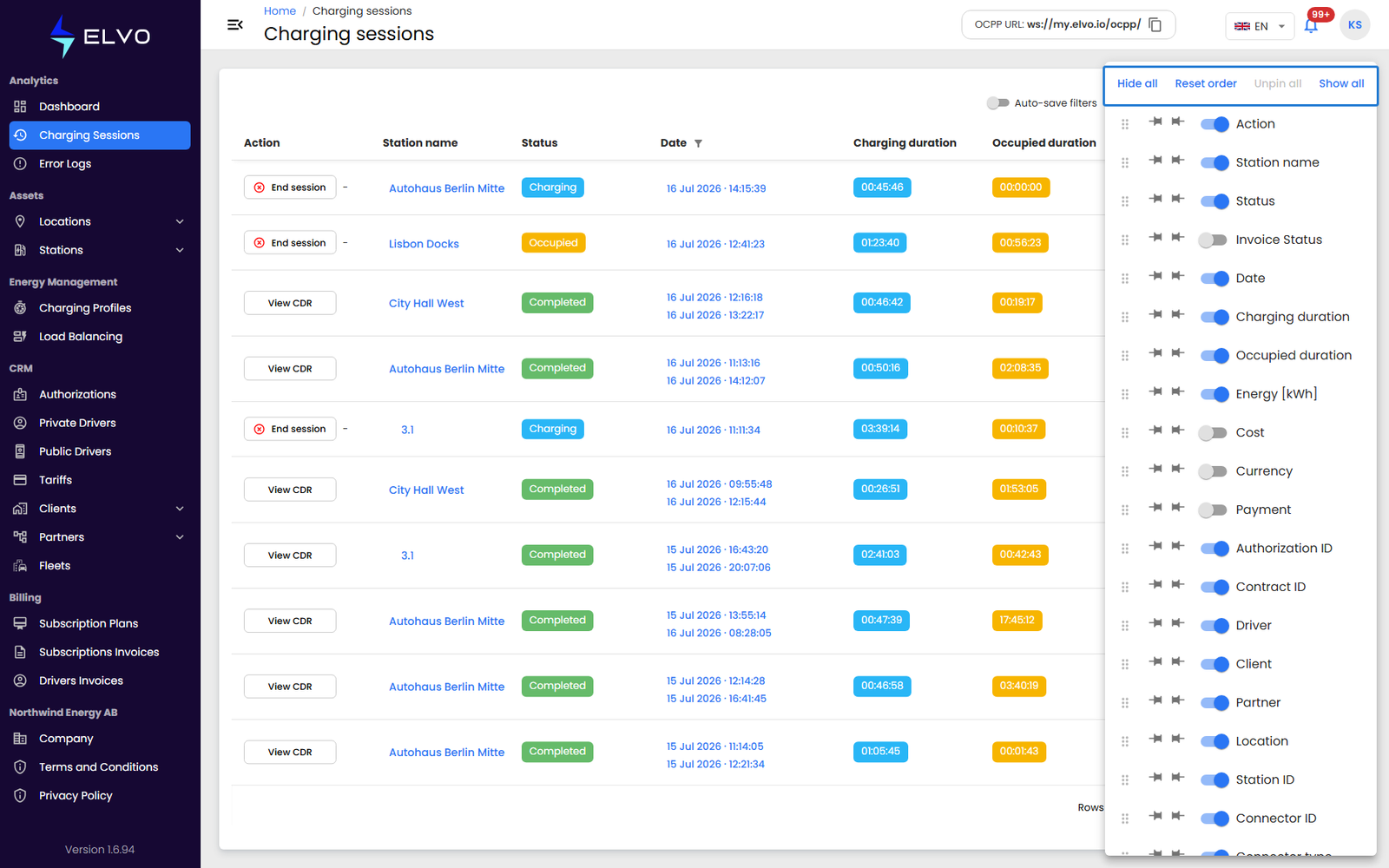
The menu offers four quick actions:
- Hide all — hides every column.
- Reset order — returns columns to their default order.
- Unpin all — releases any columns you have pinned.
- Show all — shows every column.
Below these actions, each column has its own checkbox: select or clear it to show or hide that specific column.
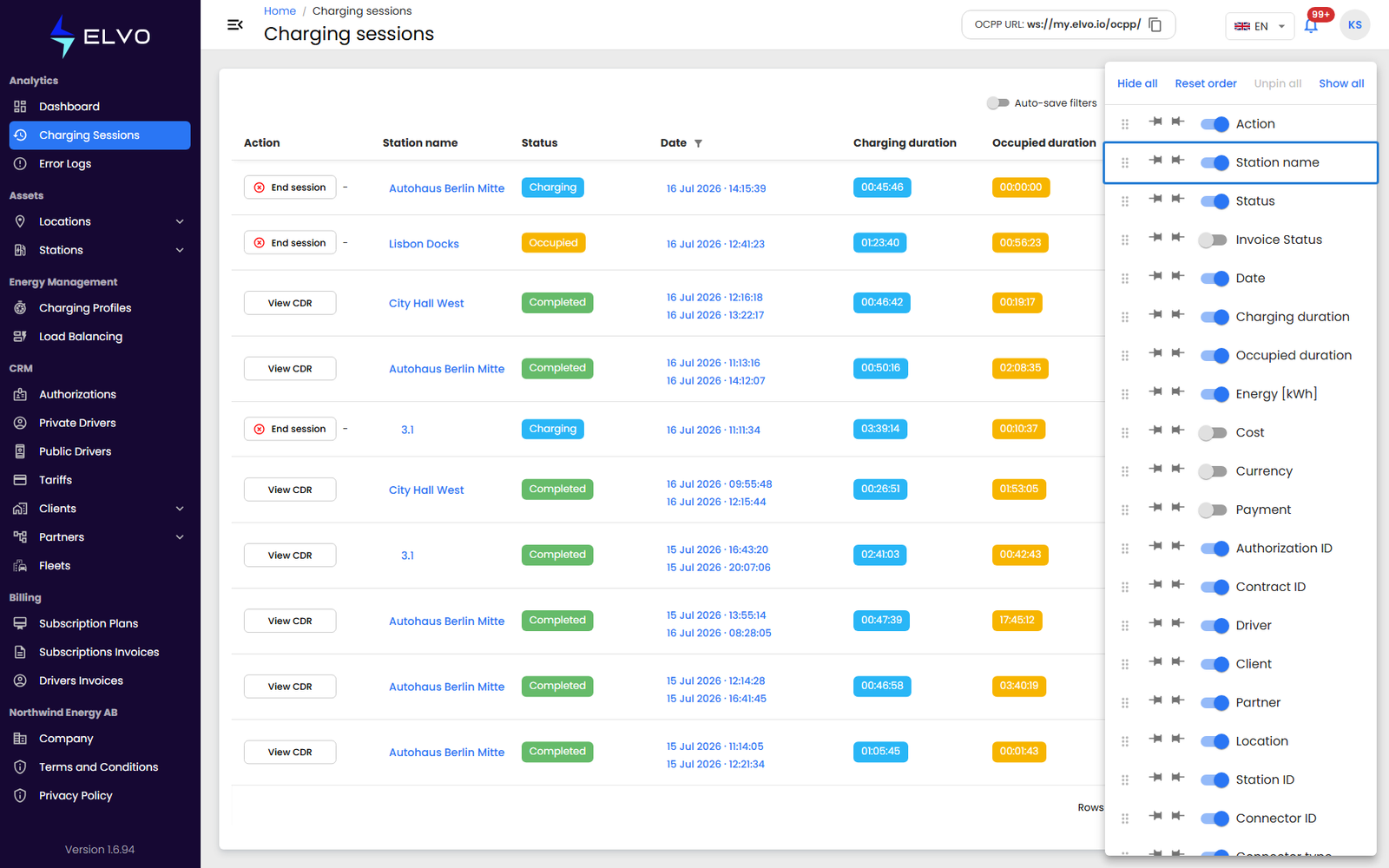
Available columns
Visible by default: Action, Station name, Status, Date (start and, once finished, end time), Charging duration, Occupied duration, Energy [kWh], Authorization ID, Contract ID, Driver, Client, Partner, Location, Station ID, Connector ID, Connector type, Transaction ID, Authorisation notes, Department, Charging Session ID, and Source.
Hidden by default — enable them from the column menu when you need them: Invoice Status, Cost, Currency, and Payment.
Reordering, pinning, and resizing
Drag a column header to move it to a new position. You can also pin a column so it stays fixed while you scroll the rest of the table horizontally, and drag a column’s edge to resize it.
Sorting
Click a column header to sort by that column: the first click sorts ascending, the second descending, and the third removes the sort. You can sort by more than one column at a time — the table applies each sort in the order you clicked the headers. By default, sessions are not sorted; they appear in the order returned by the server.
Keeping your layout
Column order, visibility, and sort are kept automatically for your next visit.