Opening a station’s detail view
In the sidebar, open Assets and select Stations. The station list shows every station visible at your tier, with columns for connector status, name, station status, Station ID, OCPI ID, client or partner, location, and model (see Part 4 for the full list and its filters).
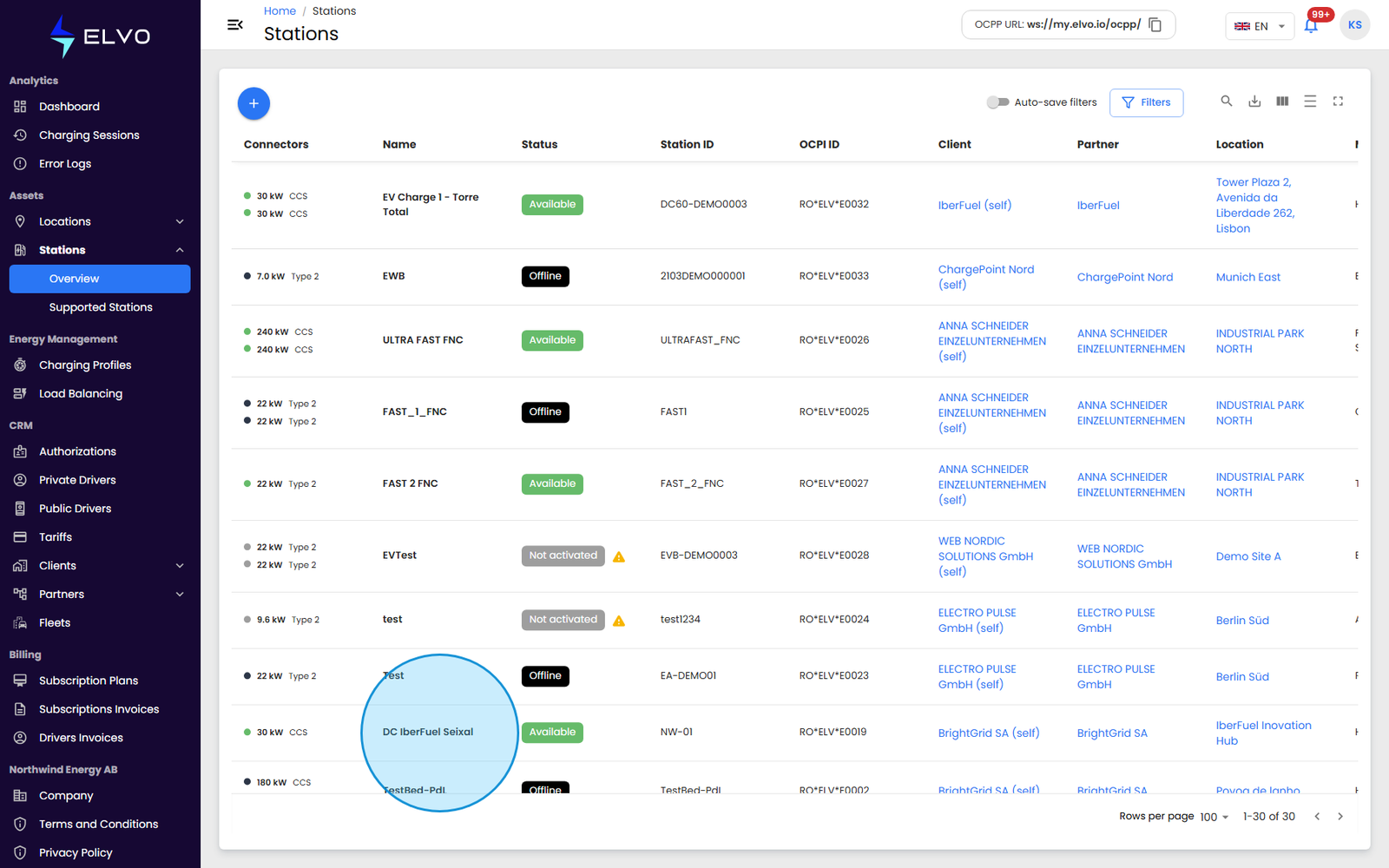
Click anywhere on a station’s row to open its detail view. The detail view replaces the list with a header (station name and status) and a horizontal tab bar — the “advanced menu” that groups every configuration and monitoring option for that station.
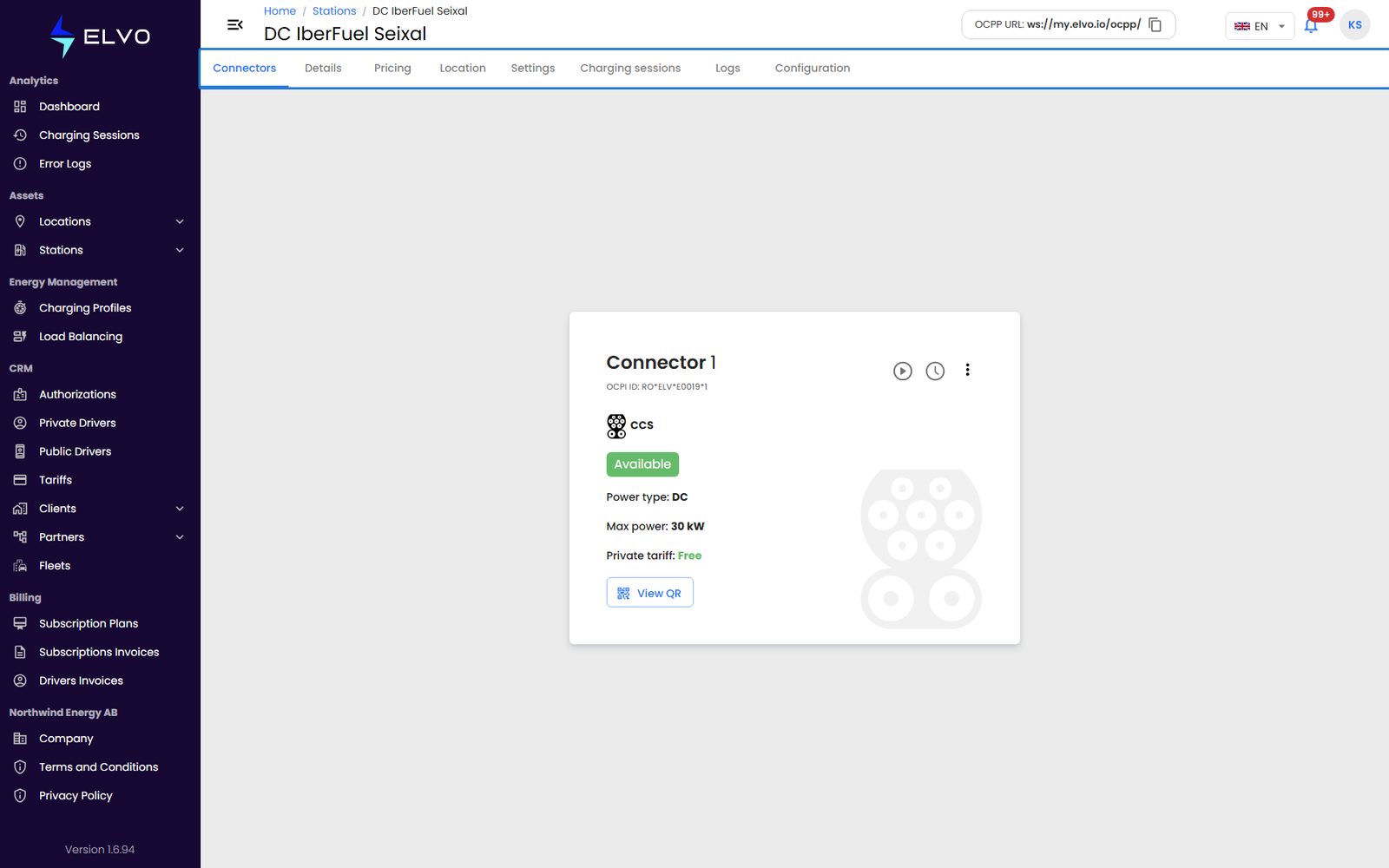
What the tab bar contains
The detail view opens on the Connectors tab by default. The remaining tabs are:
- Connectors — real-time connector status and controls (section 5.2)
- Details — station metadata (section 5.3)
- Pricing — tariff assignment (section 5.4)
- Location — map and location reassignment (section 5.5)
- Settings — supported cards, security, other OCPP options, firmware, autostart, and reset (sections 5.6–5.9 cover the flows in this manual’s scope)
- Charging sessions — this station’s session history (section 5.10)
- Logs — this station’s activity log (section 5.11)
- Configuration — an additional technical tab for OCPP-level configuration; see Part 6 (Enterprise and Partner tiers only).
Which tabs you can act on, versus only view, depends on your role’s permissions (see section 19.2).