You can change your password from your own profile page. The flow is the same for every tier and role — every user can change their own password.
Steps
-
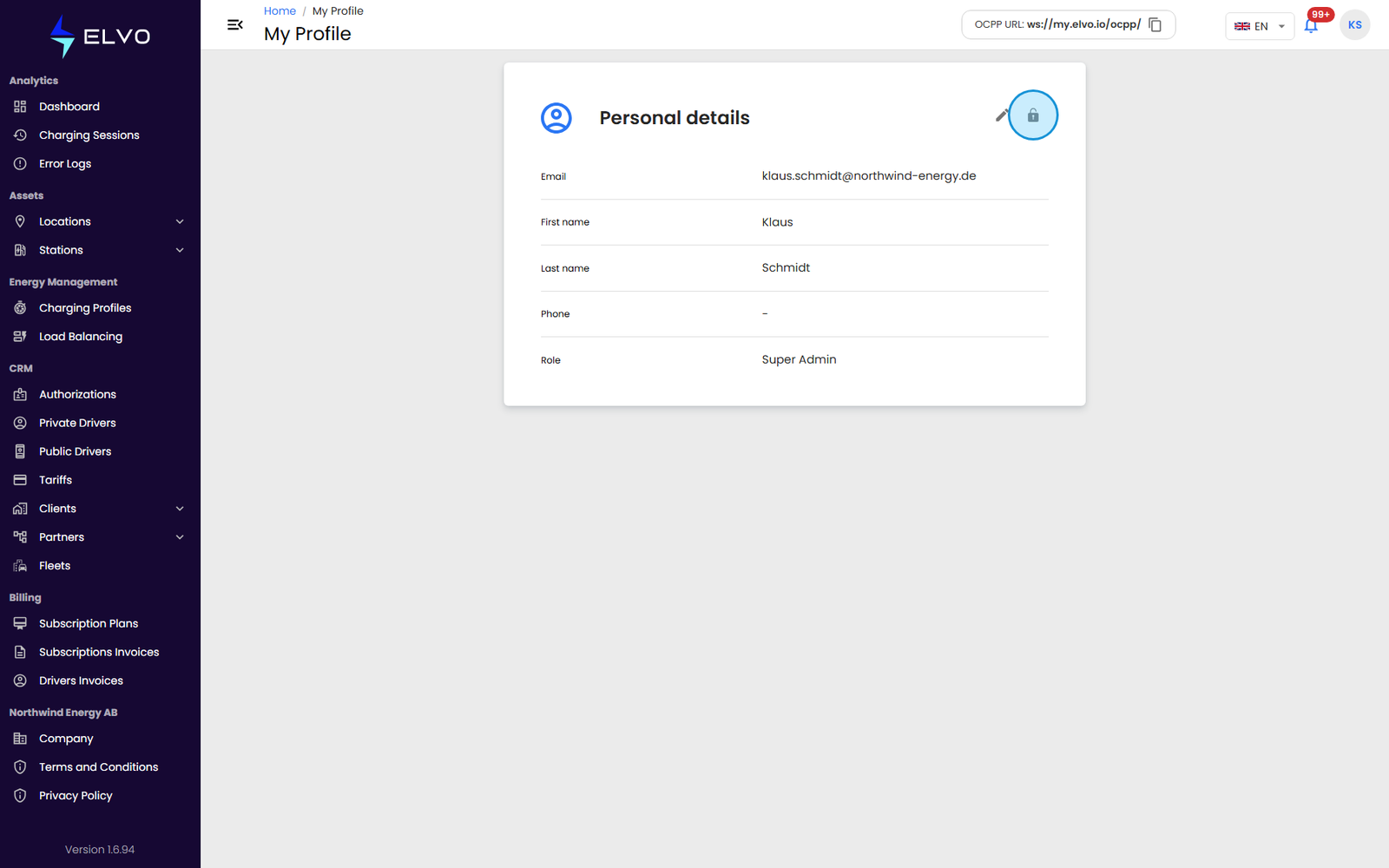
Click your avatar on the right side of the header to open the profile menu.
-
Choose My Profile. The platform opens
/my-profile, which shows your personal details (name, email, phone). -
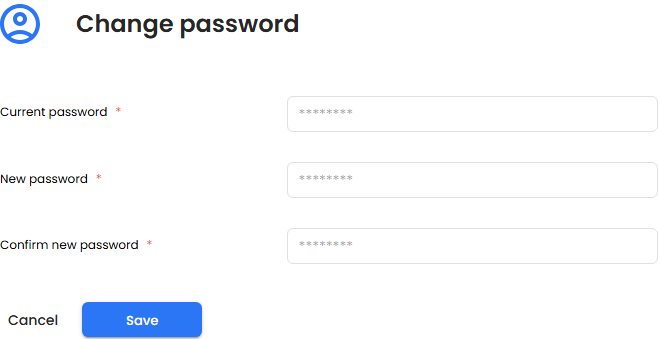
Click the Change Password action button at the top of the profile card. The button is labelled with a small lock-and-key icon and the accessible name Change password. The password form appears inline below your profile details.
-
Fill in the three fields:
- Current password — the password you use to sign in today.
- New password — the password you want to switch to.
- Confirm new password — type the new password a second time.
-
Submit the form. On success the platform shows a confirmation toast (“Personal data updated” / “Password updated”) and the form returns to the read-only view.
Validation rules
The new password must satisfy all of the following (see Document 3 §15.2):
- At least 8 characters long.
- Contains at least one lowercase letter.
- Contains at least one uppercase letter.
- Contains at least one digit or special character.
The inline strength indicator turns each unmet criterion red and each satisfied criterion green as you type, so you can see at a glance which requirements still need attention.
Common errors
- Current password is incorrect. The platform rejects the change and shows an error toast. Re-enter your current password and try again.
- Passwords must match. The New password and Confirm new password fields contain different values. Retype them so they match.
- New password does not meet requirements. One or more of the rules above is not yet satisfied. The strength indicator points to the missing criterion.
A successful password change invalidates your other active sessions on the platform; you remain signed in on the device where you made the change but will be asked to sign in again on every other device.