Every user can view their own profile from My Profile, regardless of tier or role — the same self-service principle already established for changing your password (see section 19.4).
Opening My Profile
Click your avatar in the top-right of the header to open the profile
menu, then select My Profile (see section 19.3 for the full header and
profile-menu description). This opens /my-profile.
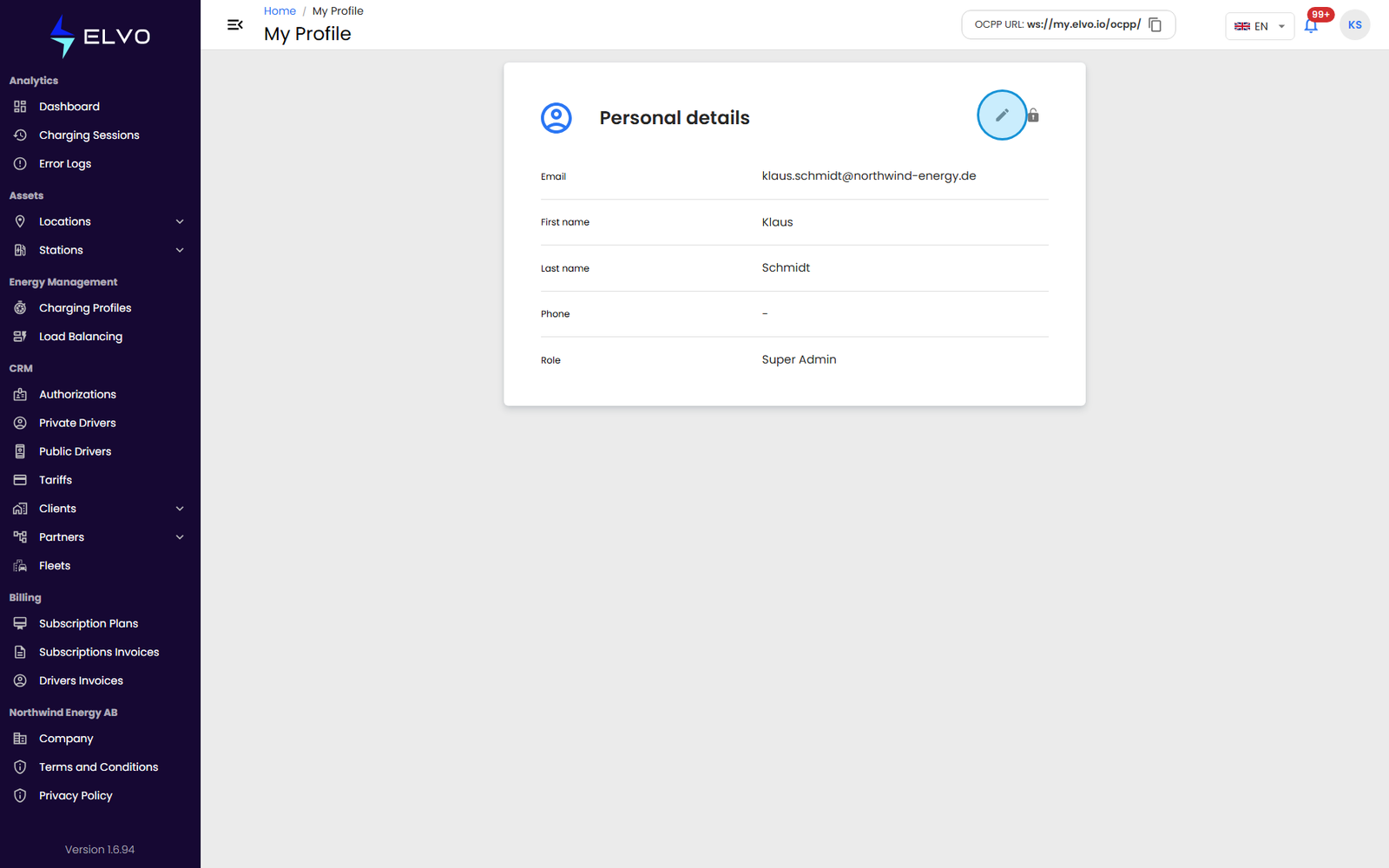
Viewing your details
My Profile shows your personal details: First name, Last name, Email, and Phone.
Editing your details
- Click the Edit User button (pencil icon) at the top of the profile card.
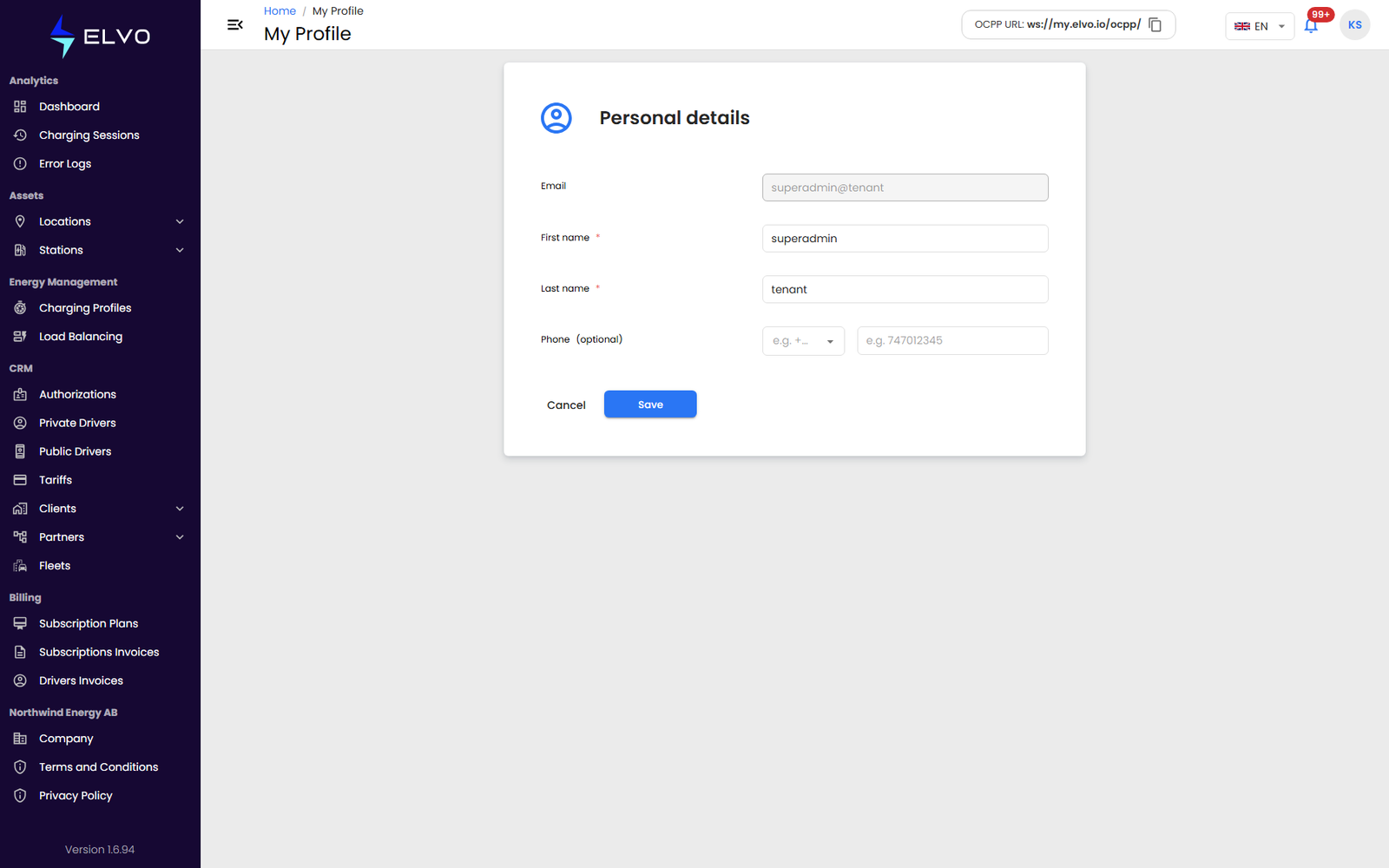
- Update your First name, Last name, and/or Phone.
- Click Save. On success, the platform shows a confirmation toast (“Personal data updated”) and the form returns to the read-only view.
Changing your password
Password changes also happen from My Profile, using the Change Password button next to Edit User — see section 19.4 for the full steps, validation rules, and error handling.