Part 12 covers public drivers, a different population from the tenant
drivers covered in CRM > Drivers (section 12.1). Everything in this Part is
visible only to enterprise-superadmin accounts — no other role, at any
tier, can see it — and it is enabled only on tenants where the platform has
turned on public driver visibility for that tenant. An enterprise-superadmin
on one tenant may see this area while the same role on another tenant does
not.
What a public driver is
A public driver is an EV driver who registered through the Elvo mobile app, not someone added by an administrator. Public drivers are not tied to a client and can charge at any public station; their accounts are managed by the Hub service rather than this tenant’s own database. This is the opposite of a private driver (section 12.1), who belongs to one client and, by default, only accesses that client’s own stations.
Because public drivers are mobile app end users, this Part shows their real personal and financial data — see “Data sensitivity” below.
Data sensitivity
This entire Part shows a real end user’s personal and financial data: legal name, phone, wallet balance and transaction history, saved payment method details, billing addresses, and their activity inside the mobile app. Access it only for legitimate support, billing, or audit work, and treat every page in Part 12 as personally identifiable and financial information.
The Public Drivers list
In the sidebar, open CRM and select Public Drivers (on the
current version the sidebar uses the same name as the page and its URL,
/public-drivers).
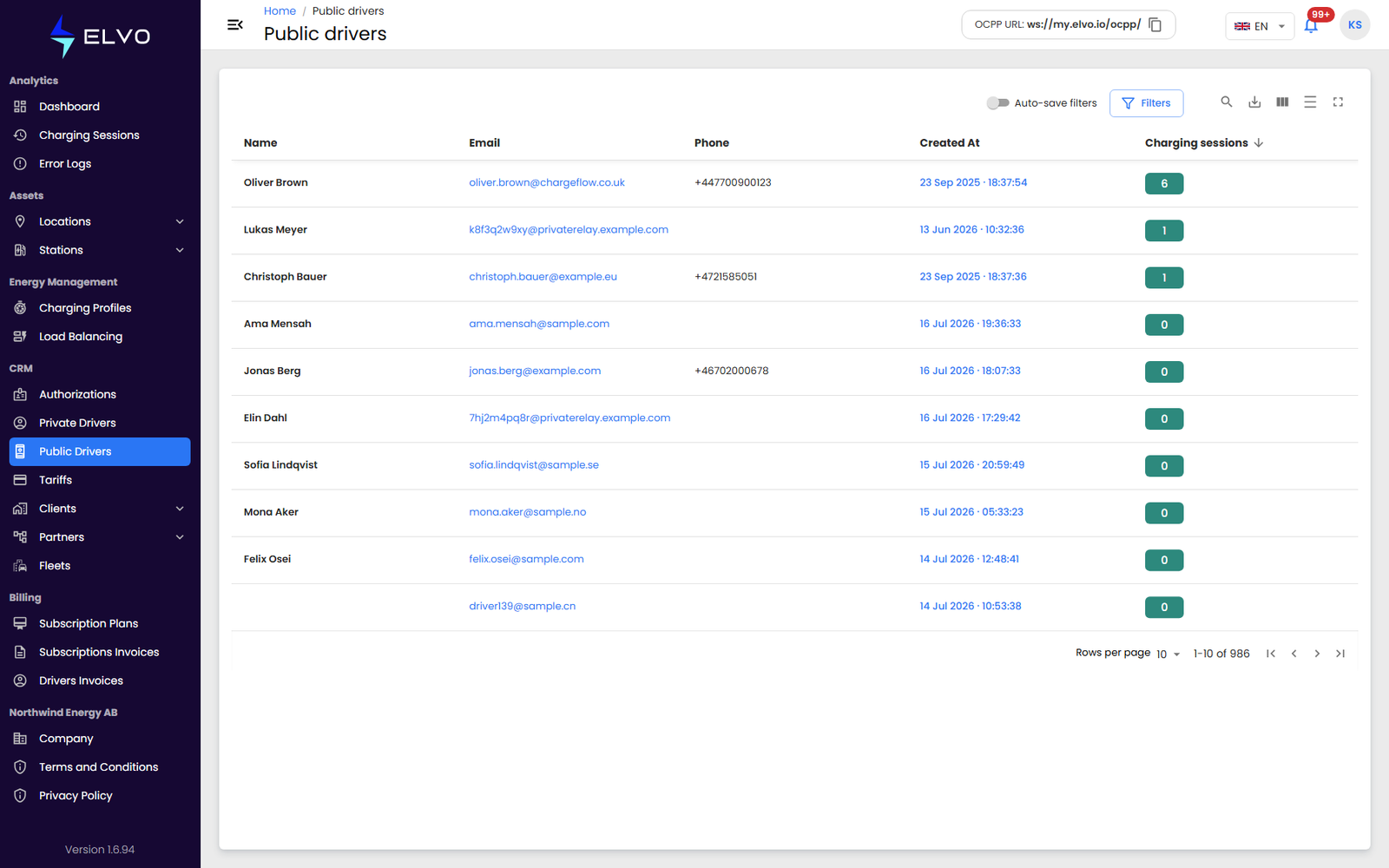
The list’s columns are: Name, Email, Phone, Created At, and Charging sessions. Click a row to open the driver’s profile.
Unlike the private Drivers list (section 12.1), there is no + button to register a new public driver here. The Documents describe no way to create or delete a public driver account from the platform — accounts are created only when a driver signs up through the mobile app.
Click a row to open that driver’s profile.
Driver detail tabs
A public driver’s profile has six tabs: Details, Charging sessions, Invoice details, Payment methods, Wallet transactions, and Platform Activity.
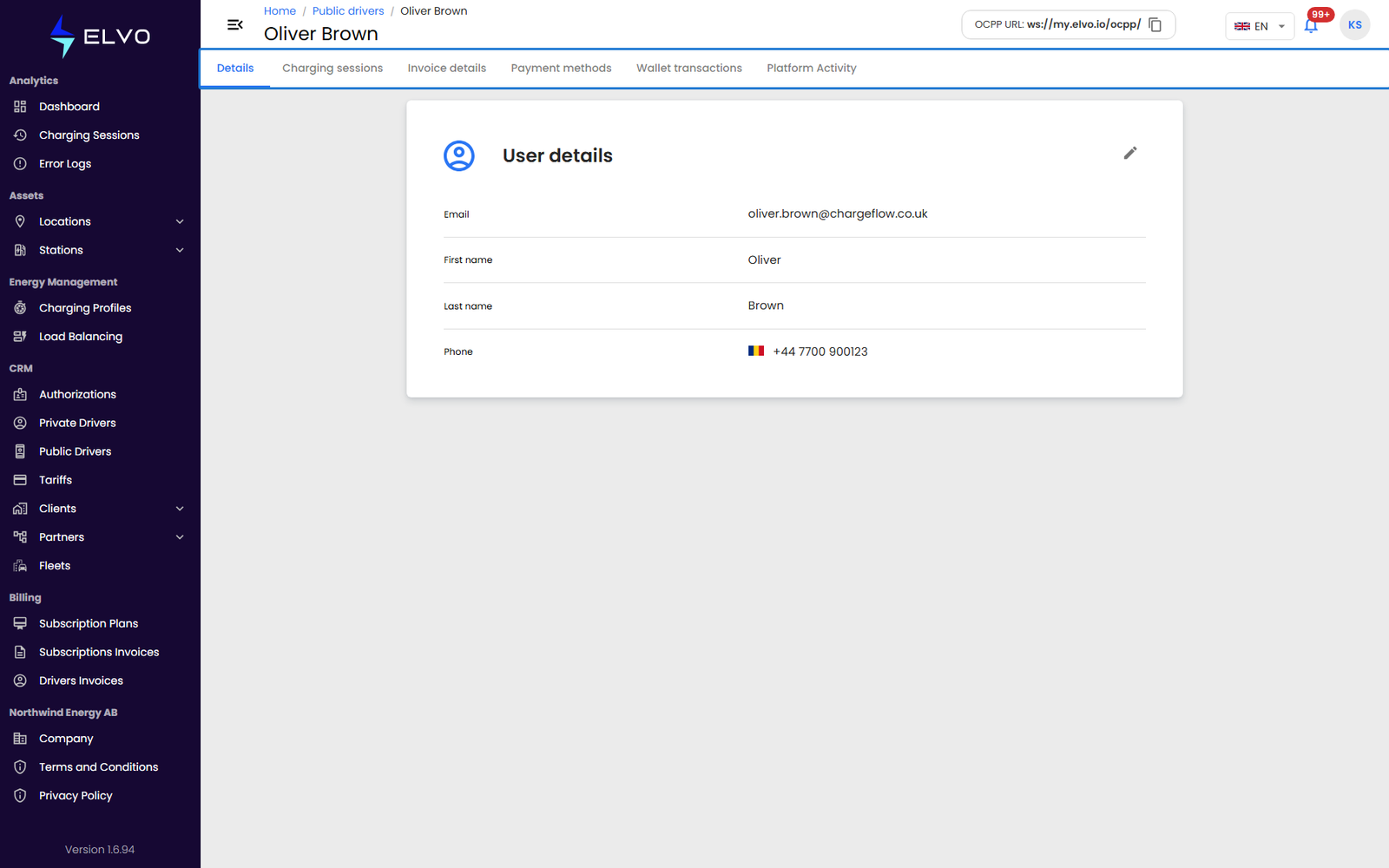
This section covers Details and Charging sessions. The other four are each covered in their own section: Wallet transactions (section 12.3), Payment methods (section 12.4), Invoice details (section 12.5), and Platform activity / App activity (section 12.6).
Viewing and editing driver details
The Details tab, the default tab when you open a driver, shows the driver’s First name, Last name, Phone, and active status.
- Open the edit control on the Details tab.
- Update First name, Last name, Phone, and/or active status. Email is not listed among the editable fields in the Documents.
- Save.
Turning off active status is the platform’s documented way to deactivate a public driver’s account; the Documents describe no separate delete action.
Charging sessions
The Charging sessions tab shows this driver’s own charging session history — the same kind of data as the Charging Sessions tab on a private driver’s profile (section 12.1), or the global Charging Sessions list (Part 2), scoped to this one driver.