Opening a user’s details
This section covers editing another user’s account — an administrator, partner staff, or client staff member. To edit your own account, use My Profile instead (see section 18.4).
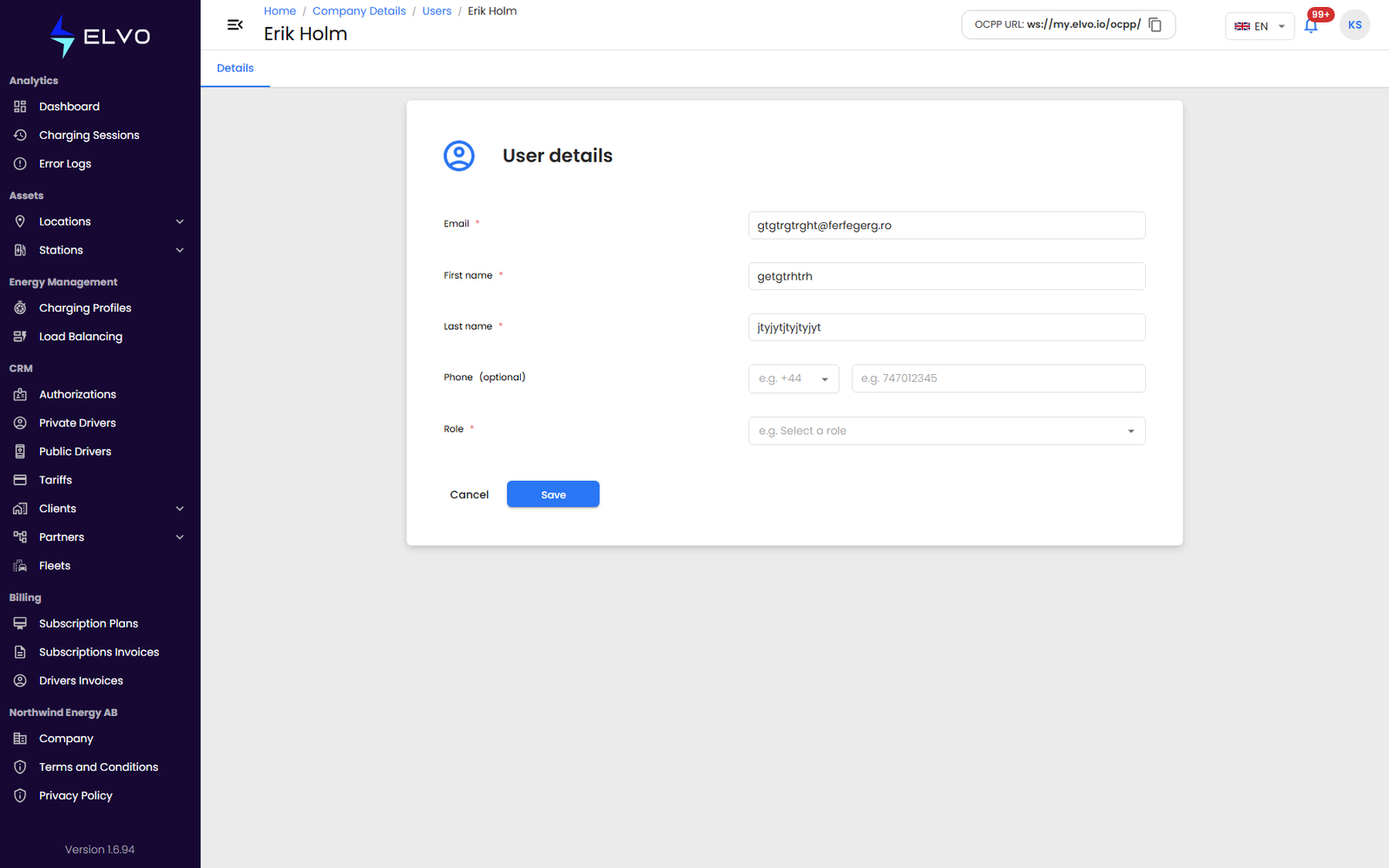
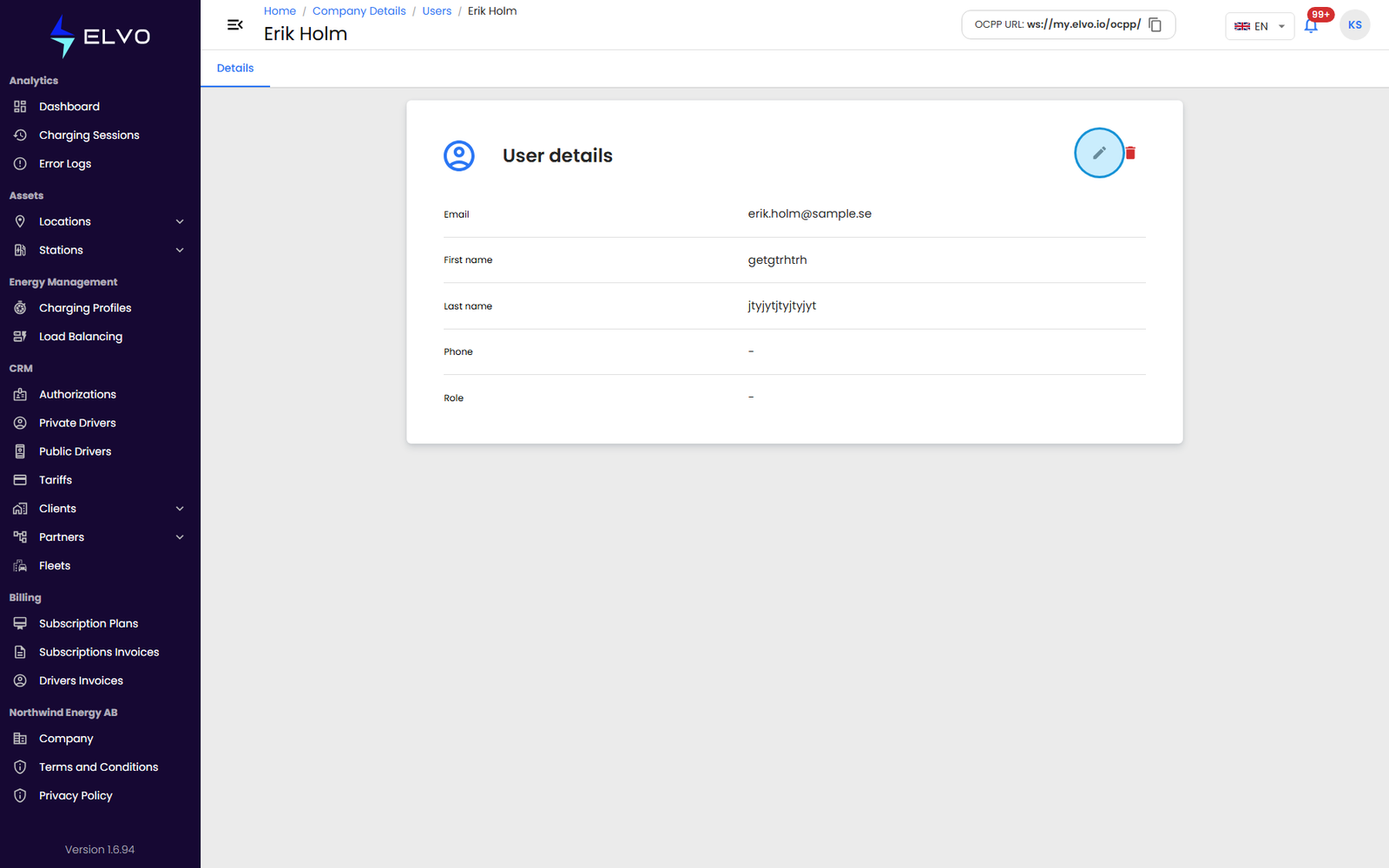
Reach an existing user from the same three Users areas used to add users (see section 17.1): CRM > Partners > Users, CRM > Clients > Users, or Company > Users. Open a user’s row from the list to reach their detail page, then select the Details tab. The tab opens in read-only view; click Edit to make the fields editable.
Clicking anywhere on the user’s row opens their detail page (rows carry no action icons); the detail page has a Details tab with an Edit user (pencil) button and a Delete user button.
Updating and saving
The Details tab shows the same information captured on the Add User form (see section 17.1): first name, last name, email, phone, and role. Update the fields you need, then click Save. Saving shows a confirmation and the form returns to read-only view.
The platform enforces role-hierarchy rules when you change a user’s role here — unlike creating a new user, where no such check currently exists (see section 17.1) — so you should not expect to be able to grant a role above your own privilege level. See section 17.5 for the full role hierarchy and permission matrix.