Where certificate management lives
In a station’s Settings tab, the Security section manages the station’s OCPP certificates (see section 5.1 Accessing the advanced menu for how to reach a station’s tab bar). The platform distinguishes two certificate types: the CS (Central System) certificate and the manufacturer certificate.
Viewing installed certificates
Certificate management lives in the Security card’s action menu on the Settings tab. Its live options (exact labels): Get installed Central System certificates, Get installed Manufacturer certificates, Install Central System root certificate, Install Manufacturer root certificate, and Delete certificate (alongside other security actions such as Get security logs, Secure firmware update, Update HTTP basic authorization password, and Upgrade security profile).
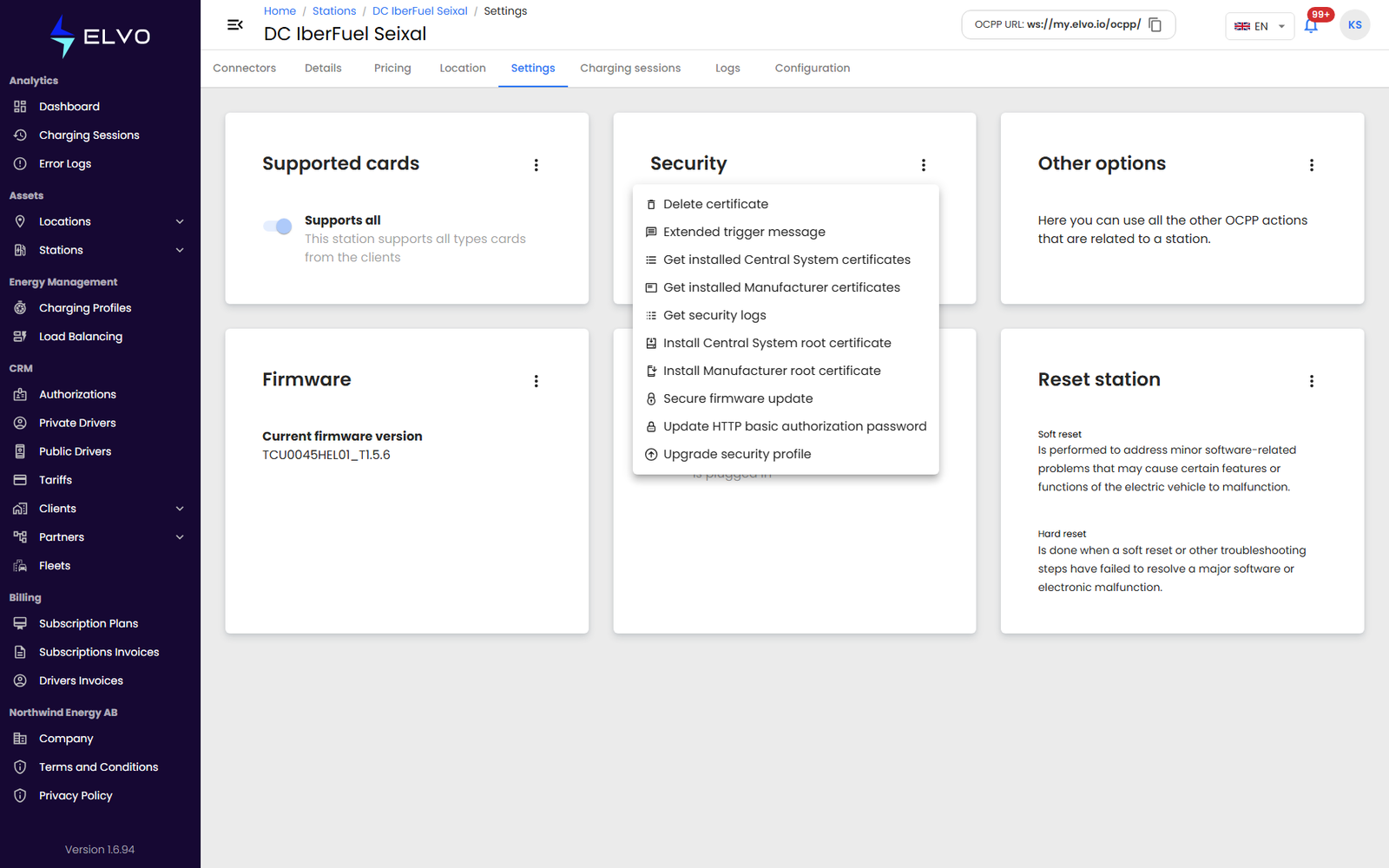
Installing a certificate
- Open the Security menu’s install option for the certificate type you need.
- Provide the certificate (PEM format).
- Confirm. The platform sends it to the station immediately as an OCPP
InstallCertificatecommand and shows a loading indicator while the station processes it — there is no further confirmation step, so review the certificate before confirming. The station must be online to receive it.
Deleting a certificate
Select an installed certificate and choose delete. The platform sends the deletion to the station immediately, the same way as an install.
If it fails
If the certificate is not valid PEM, the platform rejects it before sending anything to the station. If the station is offline, the command cannot be delivered. If the certificate is already installed, the result depends on the station — some accept the request again, others return an error.
Installing or deleting a certificate reaches the station immediately, with no further confirmation step.