What the Configuration tab shows
The Configuration tab reads and writes a station’s OCPP configuration keys directly — the low-level settings the station’s firmware exposes over the OCPP protocol (see section 5.1 Accessing the advanced menu for how to reach a station’s tab bar). It is a technical tool for Enterprise and Partner tier users.
Opening the tab loads the station’s full configuration as a table of key-value pairs. Each key is flagged as either editable or read-only.
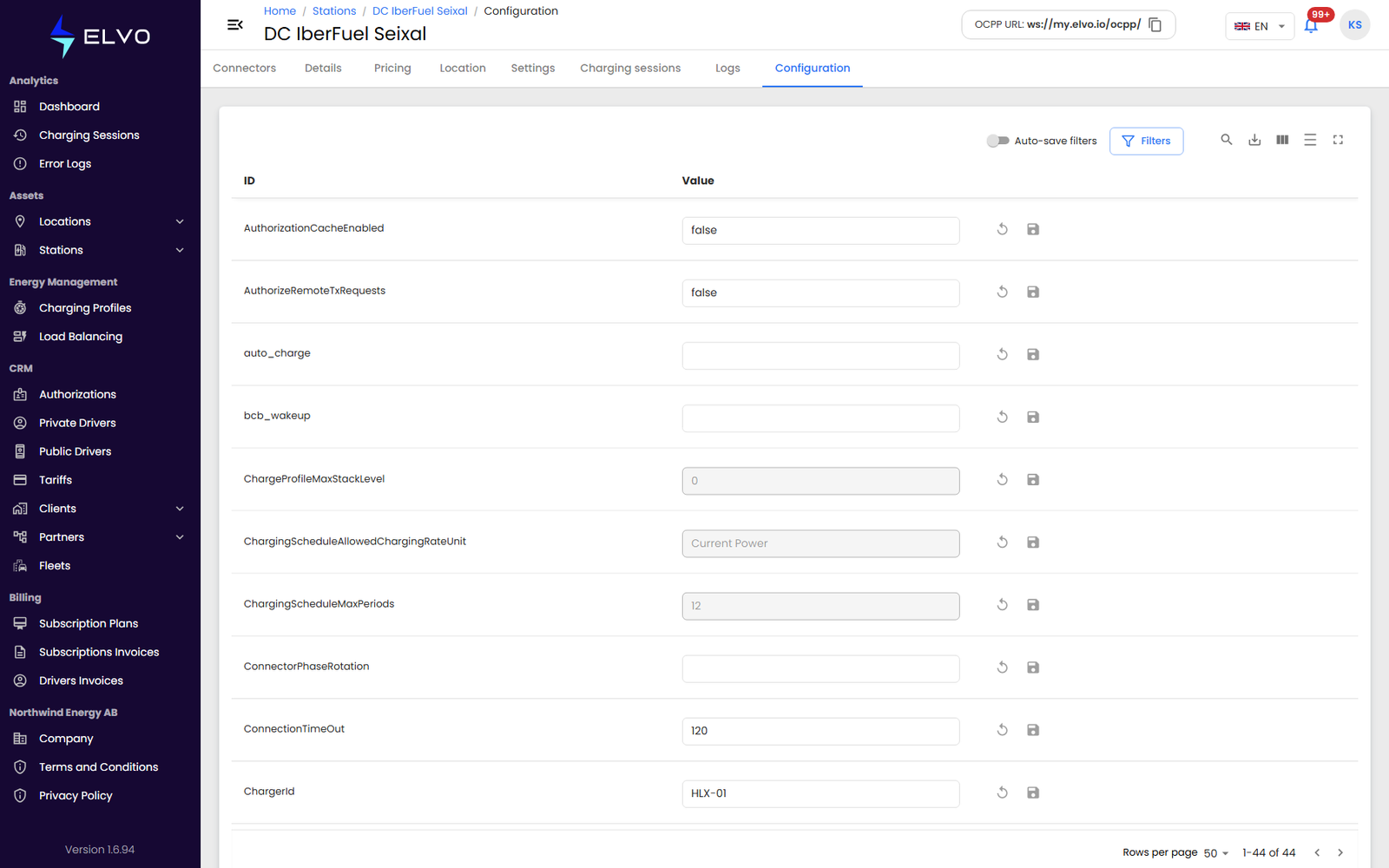
Changing a value
Click an editable key to open a modal with a value input, change the
value, and confirm. The platform sends the new value to the station
immediately as an OCPP ChangeConfiguration command — there is no further
confirmation step, so review the value before confirming. The station must
be online to receive it.
The result appears in a pop-up dialog with the raw response, rather than the usual toast notification, because OCPP responses can contain structured data worth reading in full. You may see the confirmation message appear twice after saving a value — this is a known display quirk and does not mean the value was changed more than once.
If it fails
If the station is offline, the command cannot be delivered and the pop-up shows an error instead. If the value you enter is not one the station accepts, the station rejects the change over OCPP and the pop-up shows its rejection reason.