What Company Users shows
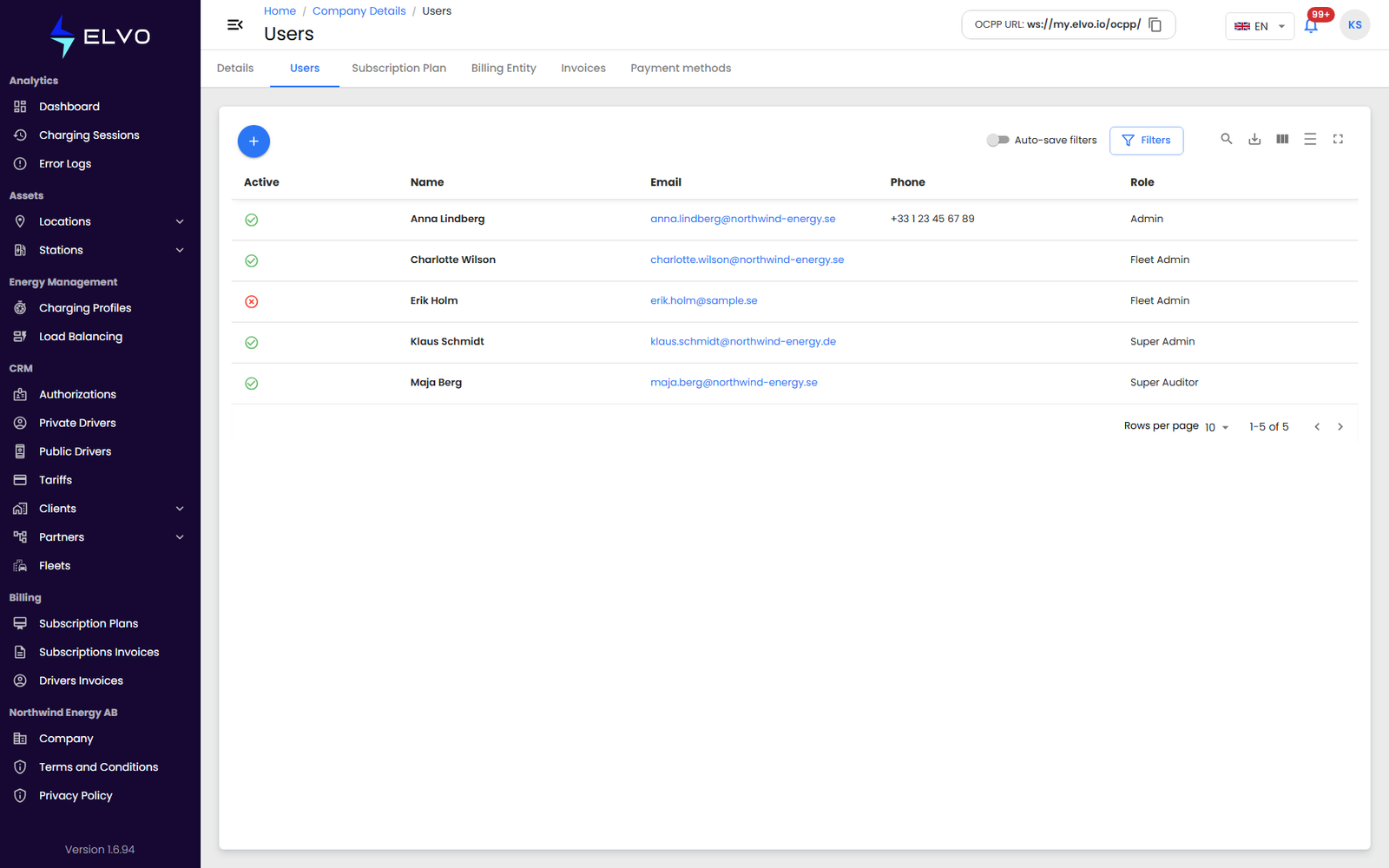
The Company Users list shows the staff accounts belonging to your own tenant (Enterprise) or your own reseller account (Partner) — the people who manage the platform itself. This differs from the Partners Users and Clients Users lists (section 17.1), which show staff belonging to the Partner and Client accounts you manage, not your own.
The Company area, including this list, is not available at the Client tier (see section 16.1 for the full tier scope note).
Reaching the list
In the sidebar, select Company, then switch to the Users tab
(/company/users).
Adding a company user
Click the + button to open the Add User form — the same form used from the Partners and Clients Users lists (see section 17.1 for the fields and validation). No Partner or Client selector appears here, since the new user is added directly to your own account.
Fill in the form and click Save.
Company user profiles
Click a row to open that user’s profile (/company/users/:id).
Editing or removing an existing user is covered in section 17.3 (Edit user) and section 17.4 (Delete user).