Like the rest of Part 12, wallet management is visible only to
enterprise-superadmin accounts (see section 12.2).
About the wallet
A public driver’s wallet is the balance they spend on charging sessions from the mobile app. The Wallet transactions tab lets you view that balance and its transaction history, and make two kinds of adjustment: adding or subtracting funds directly, and refunding an individual transaction.
This is different from the driver’s own top-up flow in the mobile app, where they add funds themselves by card payment. An adjustment made here is a direct balance change with a recorded reason, not a card payment.
Wallet transactions
Open the Wallet transactions tab on the driver’s profile to see the current balance and the full transaction history.
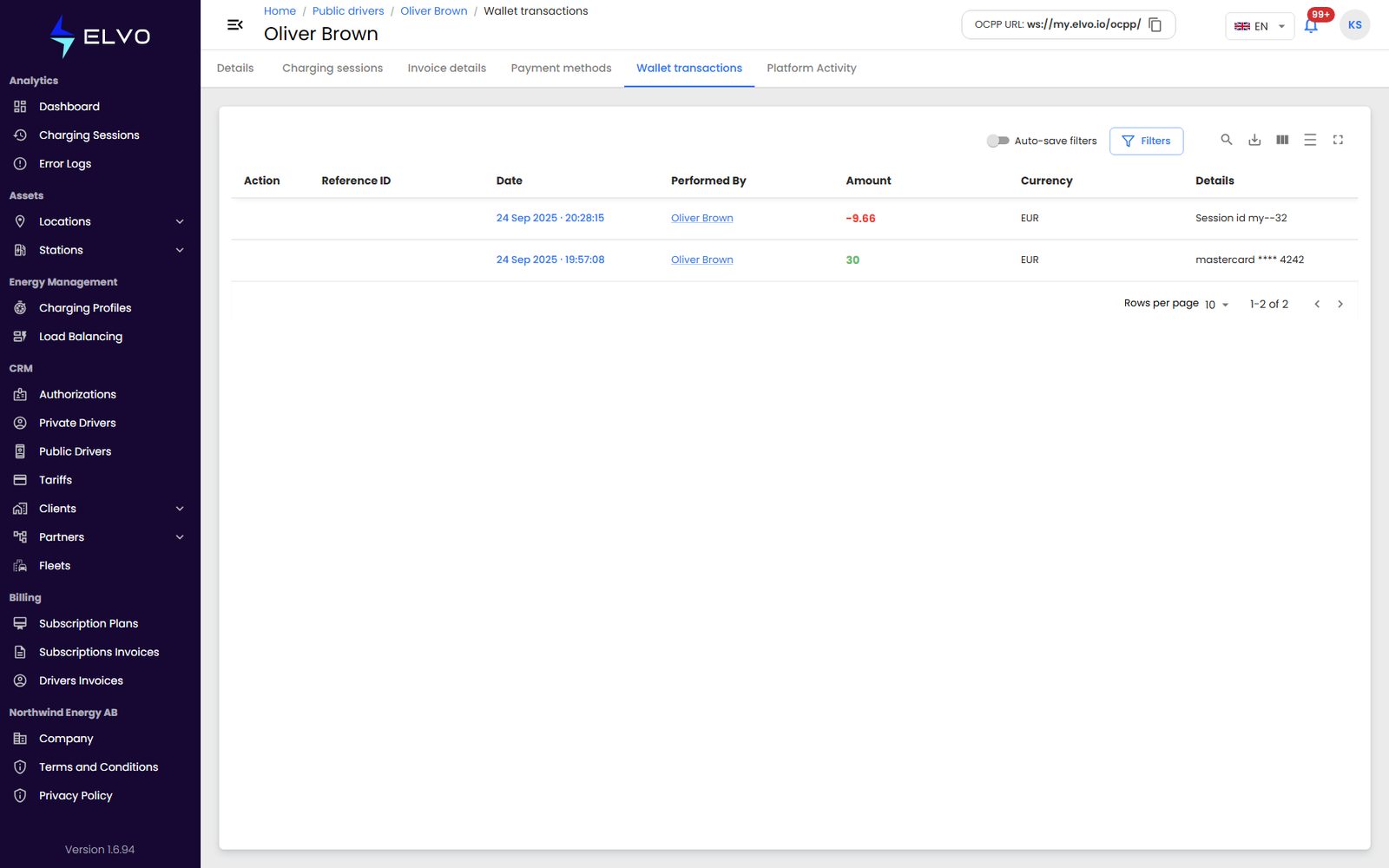
The history’s columns are: Action, Reference ID, Date, Performed By, Amount, Currency, and Details (card top-ups show the card, e.g. mastercard **** 4242; session charges reference the session id). The current balance also appears on the Payment methods tab (section 12.4), with an edit control next to it for balance adjustments.
Adding or subtracting funds
- On the Wallet transactions tab, click Add Funds.
- Enter the amount and a reason.
- Submit. This moves real money into or out of a driver’s wallet. Always get the operator’s explicit confirmation of the exact amount and reason before submitting — never submit this action automatically. On success, the balance and transaction list update.
Unhappy paths:
- Subtracting more than the current balance is rejected by the platform with an error.
- An invalid amount is blocked before submission.
Refunding a transaction
- On the Wallet transactions tab, select the transaction to refund.
- Confirm the refund amount and enter a reason.
- Submit. A refund is a real repayment to the driver. Always get the operator’s explicit confirmation of the exact transaction, amount, and reason before submitting — never submit this action automatically. On success, the transaction list updates.
Unhappy path:
- Refunding a transaction that has already been refunded is rejected by the platform with an error.
Wallet balances and transaction history are financial data belonging to a real end user — handle this tab with the same care as the rest of Part 12 (section 12.2).