Requesting a reset
If you know your current password, change it from your own profile instead (see section 19.4 Changing your password). Use this flow only when you cannot sign in because you have forgotten your password.
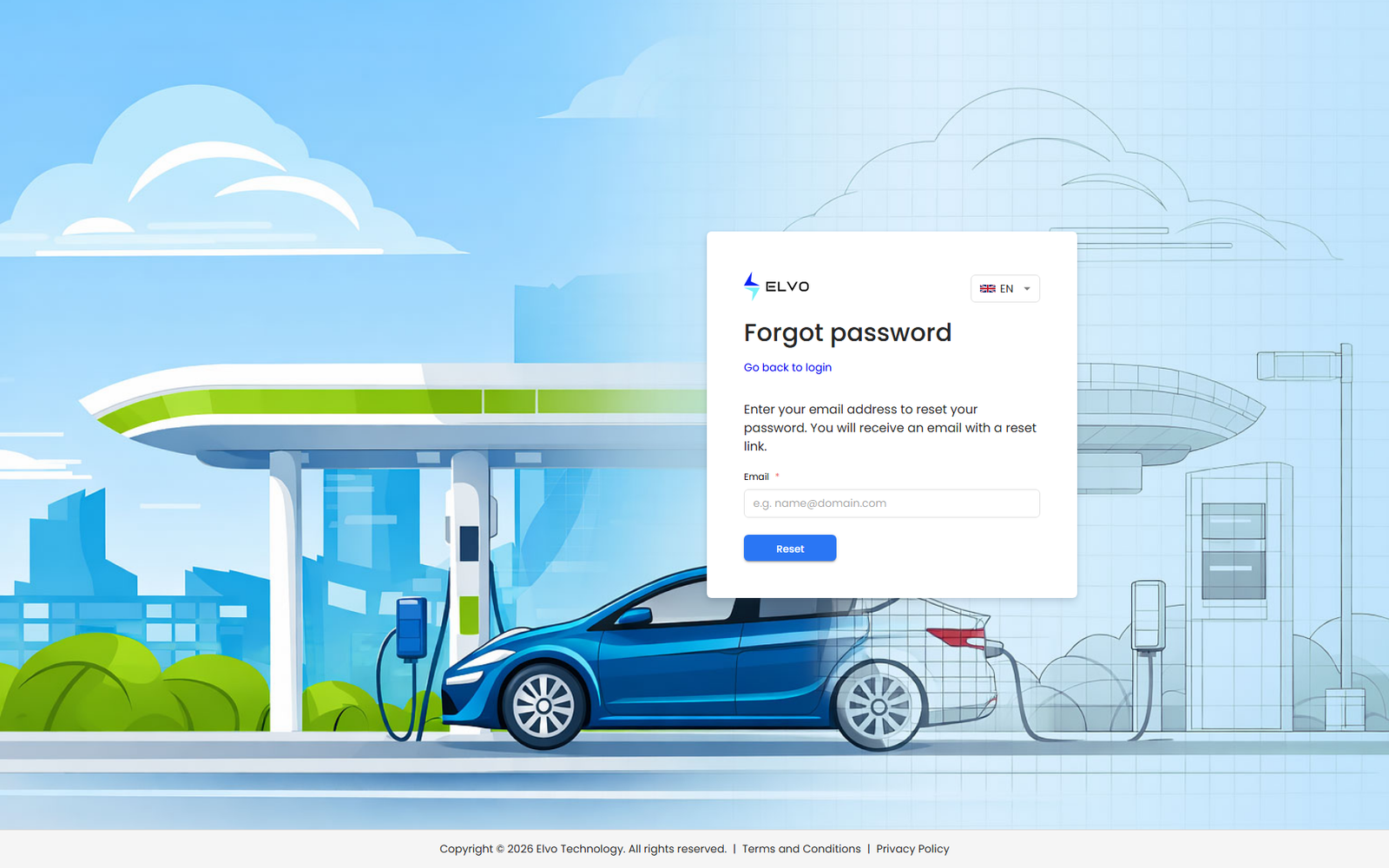
The reset page lives at /auth/forgot-password. On the current version
(v1.6.94) the login page shows no link to it — sign-in normally uses an
email code instead (see section 18.1) — so the page is reached by direct
URL; it renders an Email field, a Reset button, and a Go back
to login link (verified live 2026-07-16). Enter your email address
and submit.
The platform shows the same confirmation whether or not that email belongs to an account, so this step never reveals whether an address is registered.
Completing the reset
If the email belongs to an account, you receive a password reset email with a link valid for 72 hours.
- Open the link from the email. It opens a page for setting a new password.
- Enter and confirm your new password. The same password rules apply as when changing your password from your profile (see section 19.4 Changing your password for the full list).
- Submit to set the new password.
On success, the platform sets your new password and signs you in immediately, taking you straight to the Dashboard — no separate sign-in step is needed.