The column menu
Every table’s toolbar includes a columns icon that opens a column menu (see section 2.3 for the Charging Sessions example). The menu offers four quick actions, followed by one checkbox per column:
- Hide all — hides every column.
- Reset order — returns columns to their default order.
- Unpin all — releases any columns you have pinned.
- Show all — shows every column.
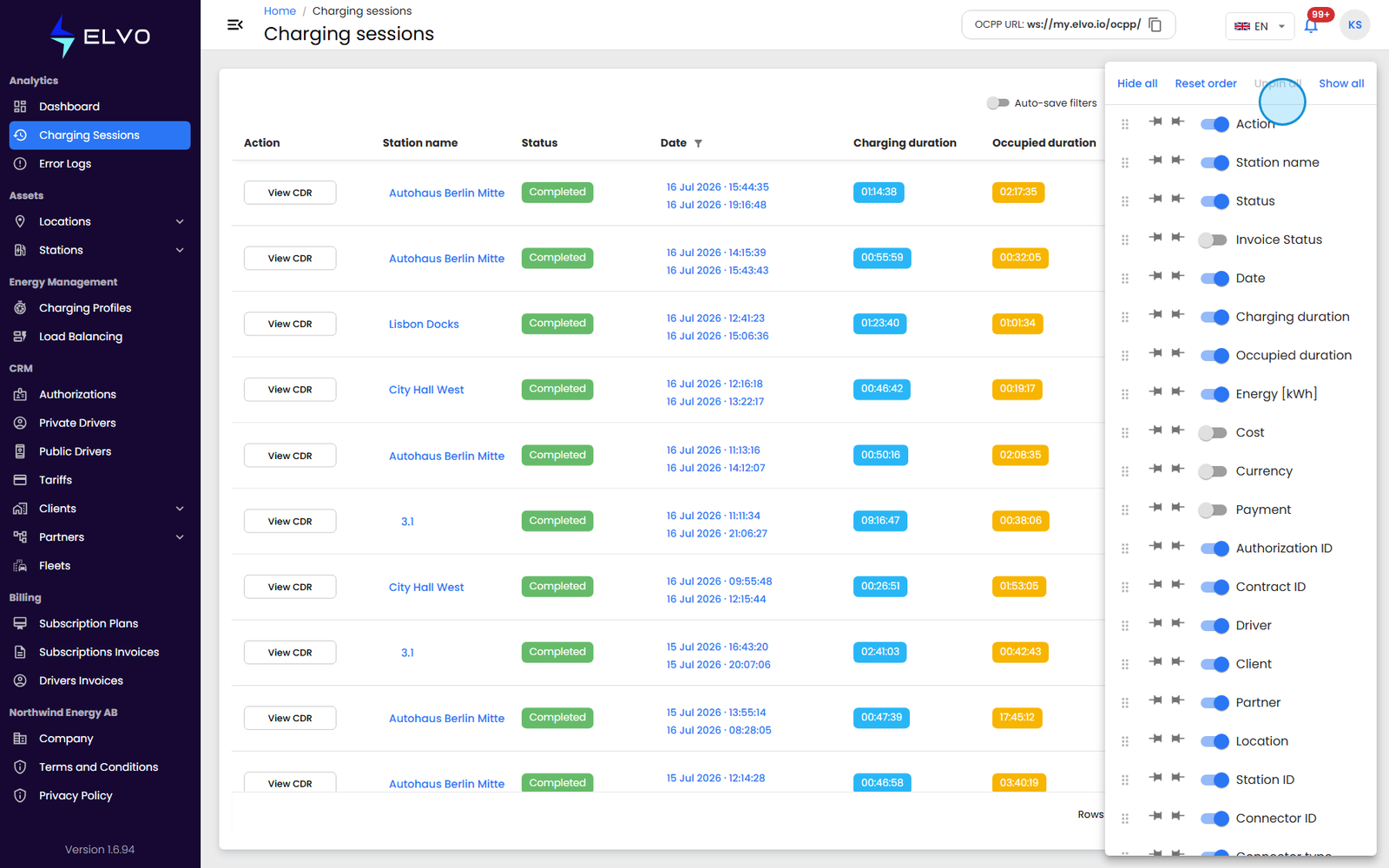
Each table defines its own set of available columns and which ones are visible by default — see that table’s own section for the specific list (for example section 2.3 for Charging Sessions).
Reordering, pinning, and resizing
Drag a column header to move it to a new position. Pin a column so it stays fixed in place while you scroll the rest of the table horizontally. Drag a column’s edge to resize it. (For sorting, which is also done from the column headers, see section 20.1.)
Keeping your layout
Column order, visibility, and sort are kept automatically for your next visit. This happens for every table, independently of that table’s Auto-save filters setting (section 20.2), which only governs filter values.